Add Tokens
You can create a token from the Admin Console > Tokens pane.
Important: After a token has been created, it can be viewed but no longer be modified.
Step 1: Create Token
To create a new token:
- From the navigation menu click Admin Console.
- Navigate to Tokens.
- Click the Add New Token icon.
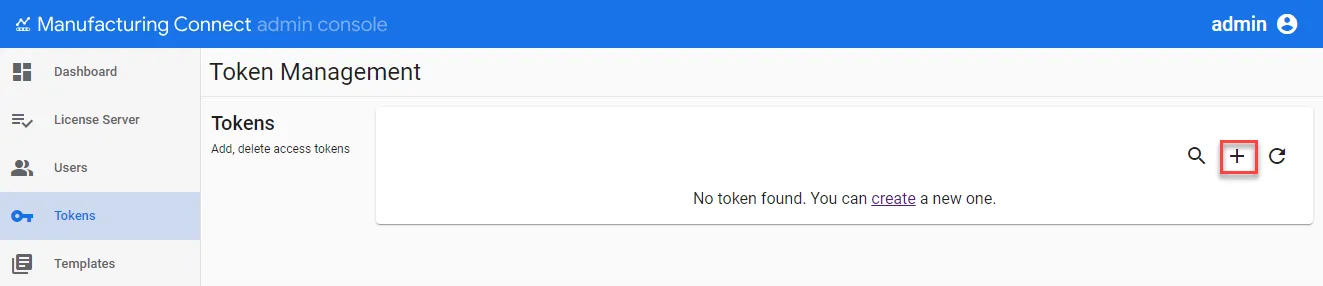
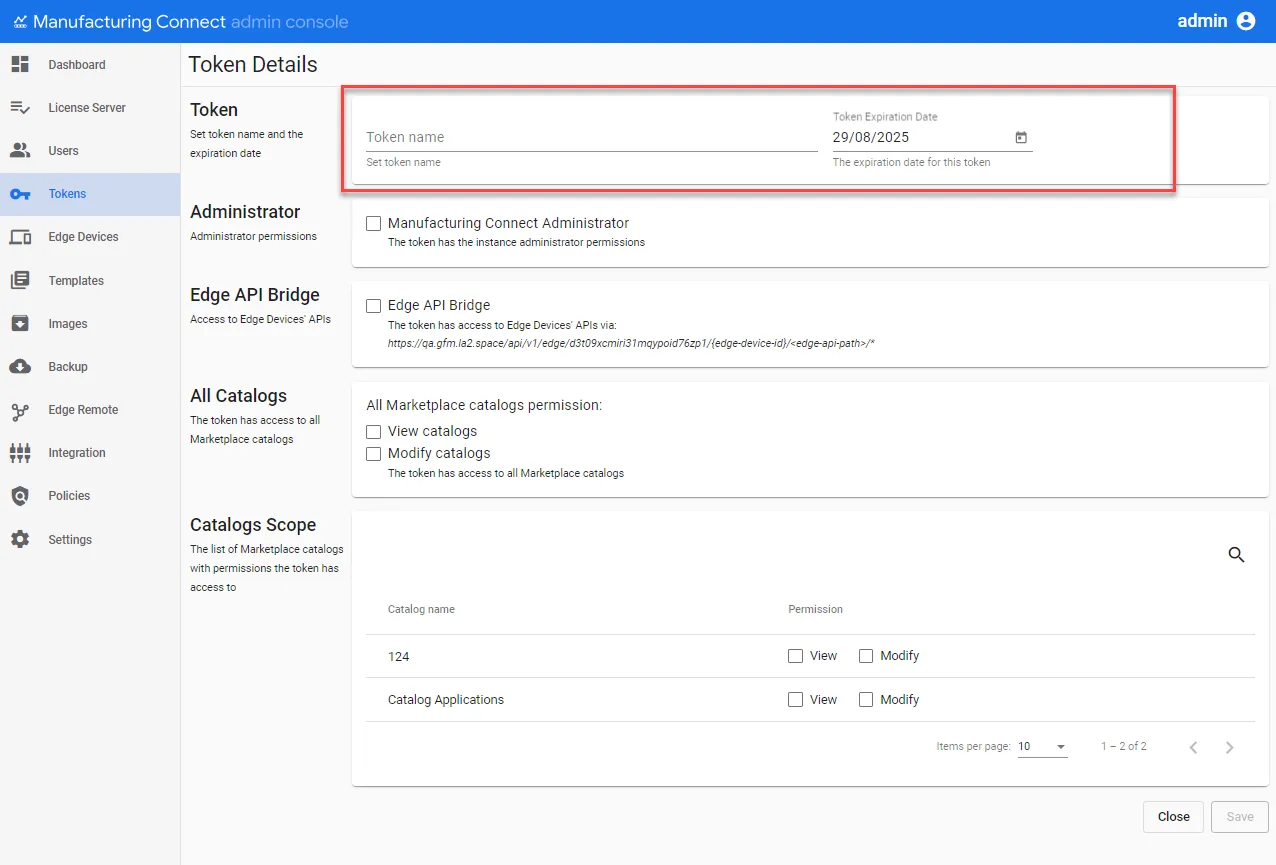
Step 2: Enter Token Details
Enter the token name and select the expiration date for the token.
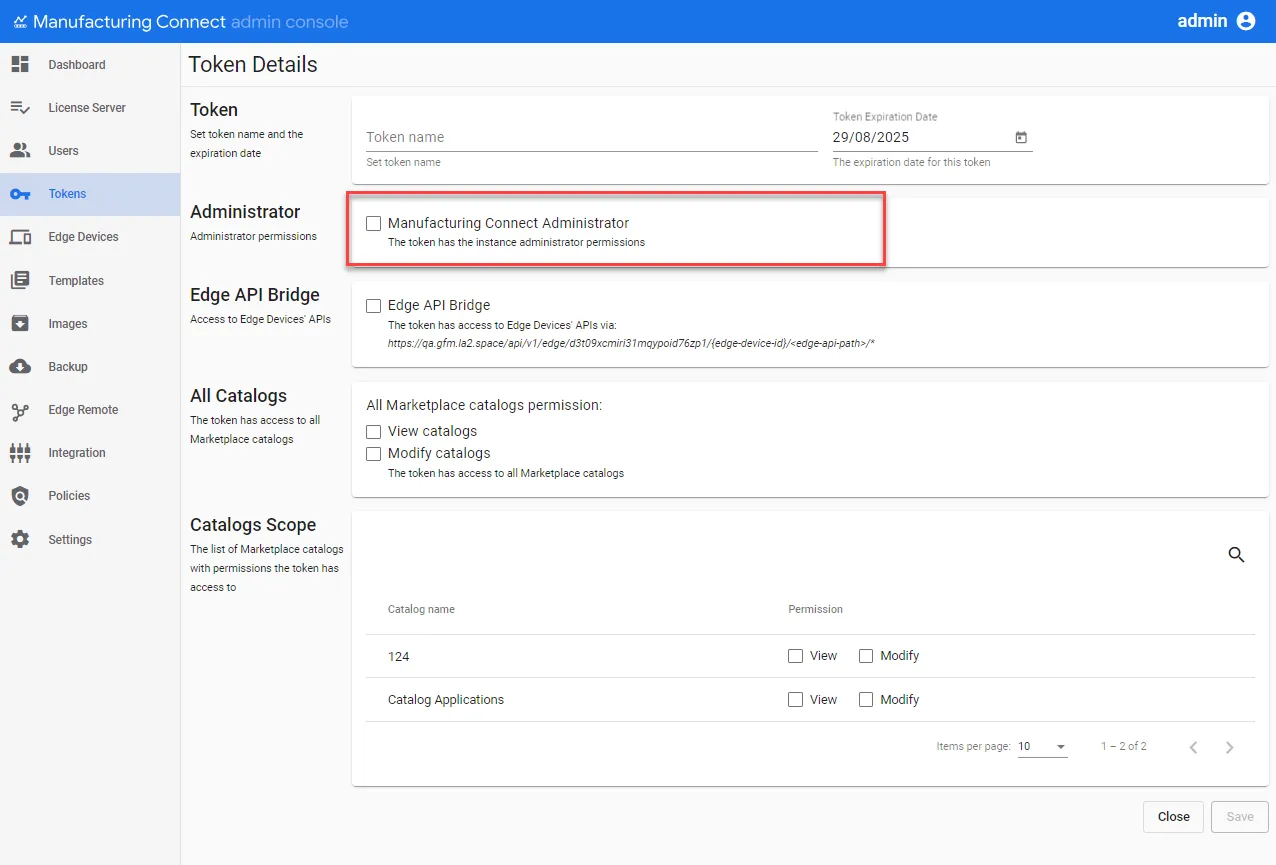
Step 3: Define Token Scope
You will need to define the administrator permissions for the token. Select the checkbox to give the token instance administrator permissions.
Step 4: Edge API Bridge Option
Note: This option is available for Manufacturing Connect version 2.15.0 and later.
Select this option to integrate all applicable Manufacturing Connect Edge APIs through a single Manufacturing Connect endpoint.
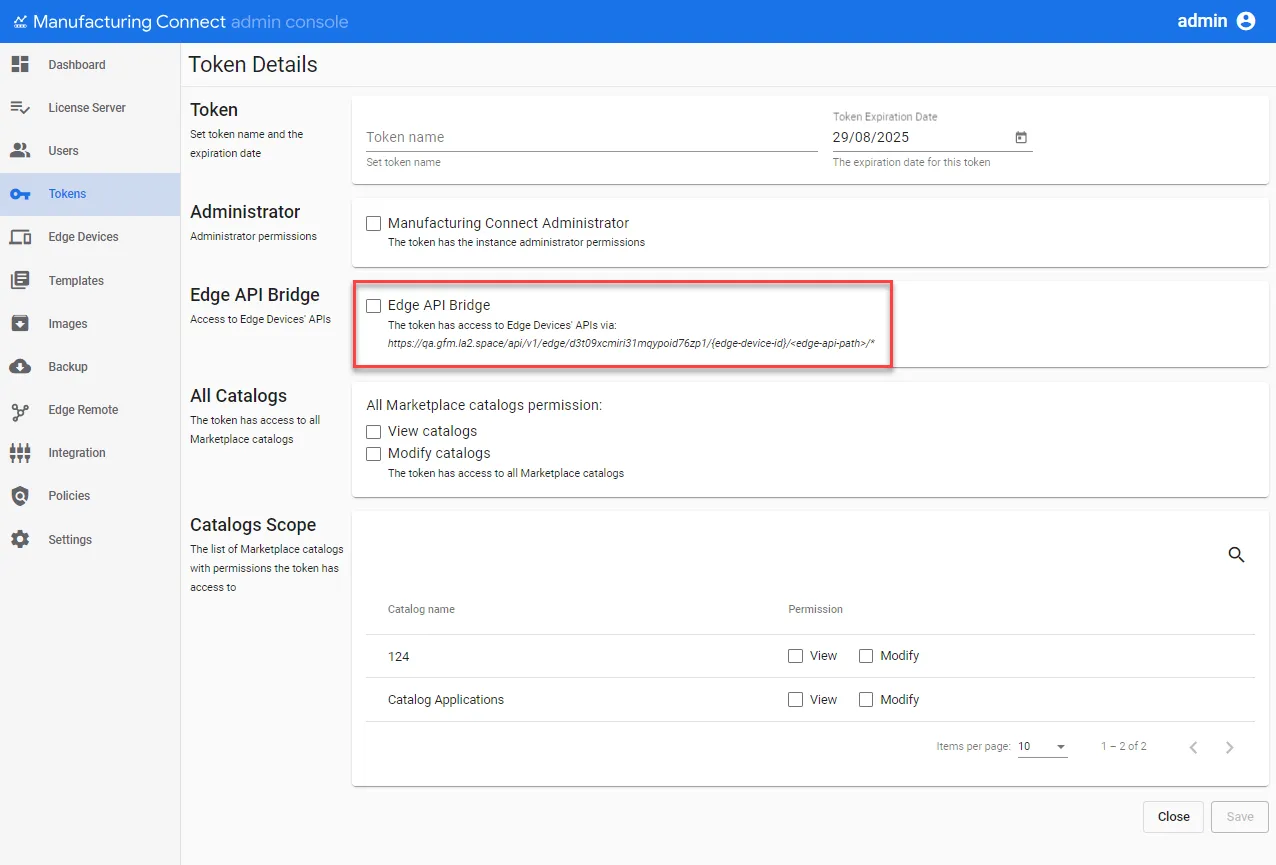
The token has access to Manufacturing Connect Edge APIs through the path given on the page.
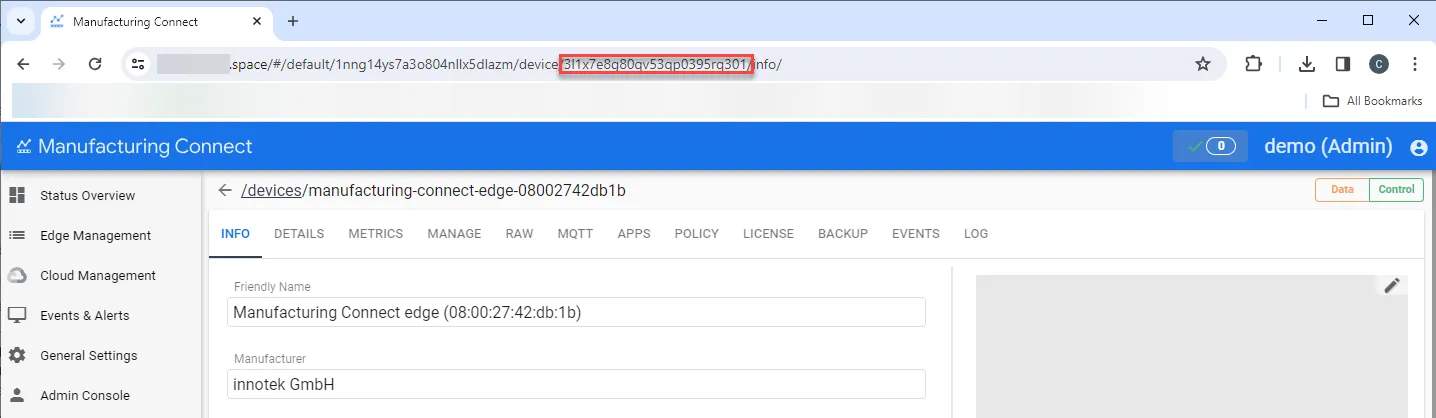
To get the edge device ID, in Manufacturing Connect, navigate to Edge Devices and click the device name you want to give access to. In the browser address bar, copy the string after device.
Step 5: Catalogs and Scope Option
Note: This option is available for Manufacturing Connect version 2.22.0 and later.
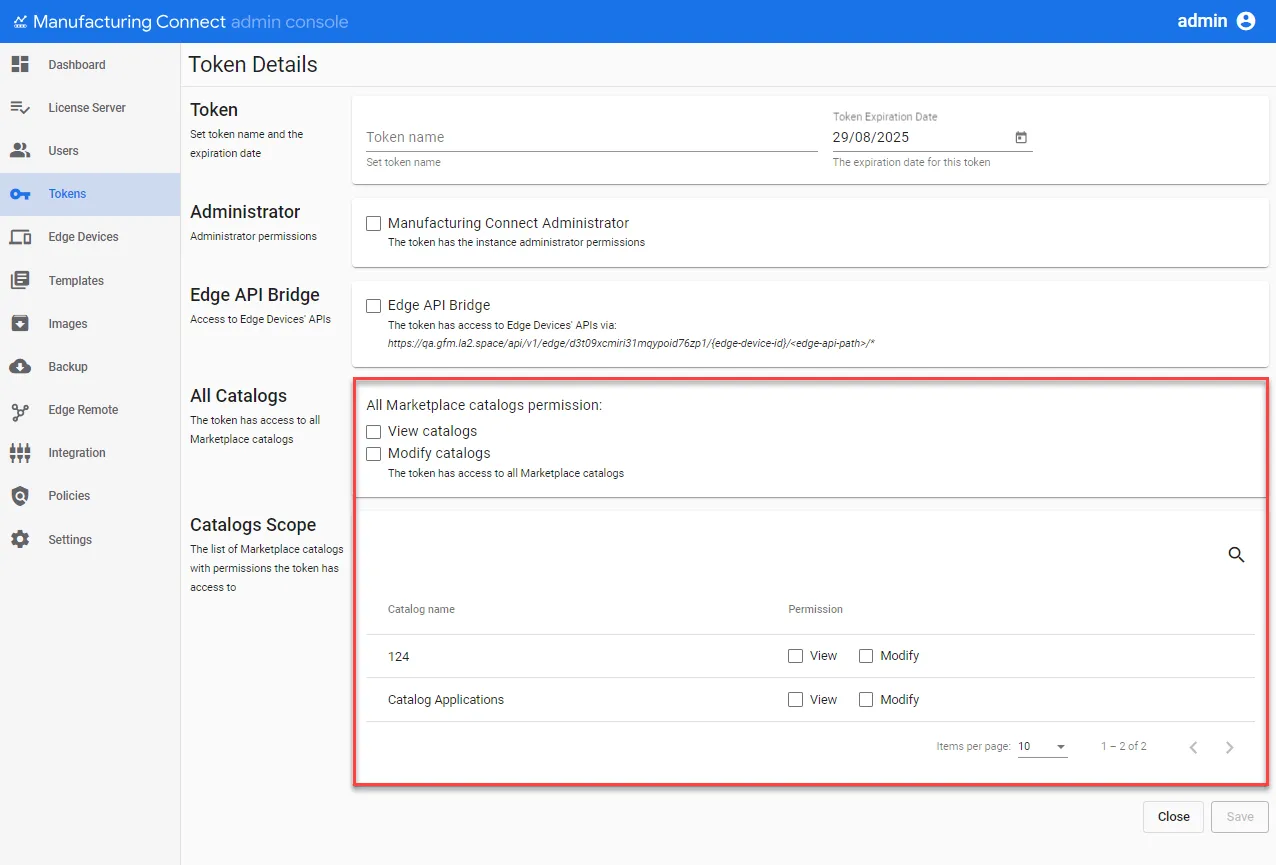
Manufacturing Connect admin authorizes third-party applications to access the Marketplace Catalog's API using tokens. The token has access to all Marketplace catalogs.
You can specify which Marketplace catalogs the token can access and set permissions for them.
Step 6: Save Token
After saving the token, make sure to copy it before closing the dialog.
![New token created [blurred token]](https://cdn.images.archbee.com/SSUUxKZUk9bFTEPNn_6Zo/Czs2UE5zudsaPyKuPGg-r_new-token-created.png?format=webp "New token created [blurred token]")
Use Token
When accessing the API, you must use the custom field X-AuthToken in the HTTP header.
For example:
X-AuthToken: zZA82pIo70xzsrwmSl1f0P6DSfvuZgo1