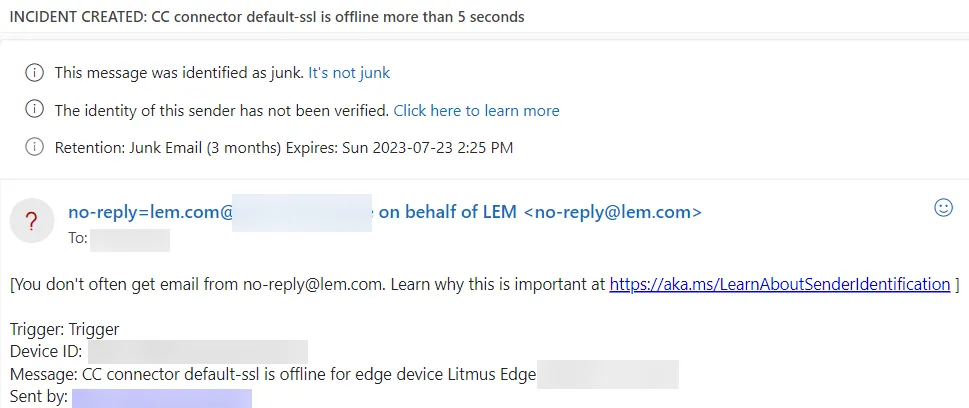
Create an Email-Alert Based Trigger for Connector Online Status
In this use case, you'll set up an alert and a trigger for the default MQTT SSL connector in Manufacturing Connect Edge (MC Edge) that connects to Manufacturing Connect. Then you will simulate a disconnection for the connector to trigger the alert.
Before You Begin
- You will have to enable SMTP from the Manufacturing Connect Admin Console. See Email to learn more.
- If you haven't yet connected your MC Edge instance to Manufacturing Connect, see Activate an Edge Device. An MC Edge instance needs to be activated in Manufacturing Connect before it can trigger alerts.
Step 1: Set Up an Email-Alert based Trigger
In this step you'll create an email notification alert. Next, you will create a trigger that will use the email notification alert. See Alerts for additional details.
From Manufacturing Connect, navigate to Events & Alerts and follow the steps below.
Step 1a: Set Up an Email Alert
To set up an email alert:
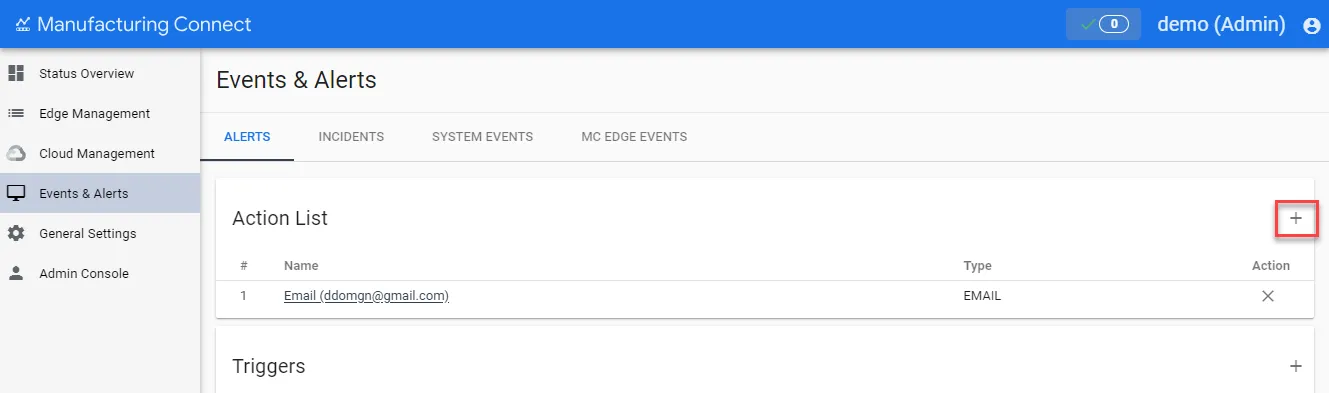
From the Events & Alerts pane, click the Add new Action icon. The Add new Action dialog box appears.
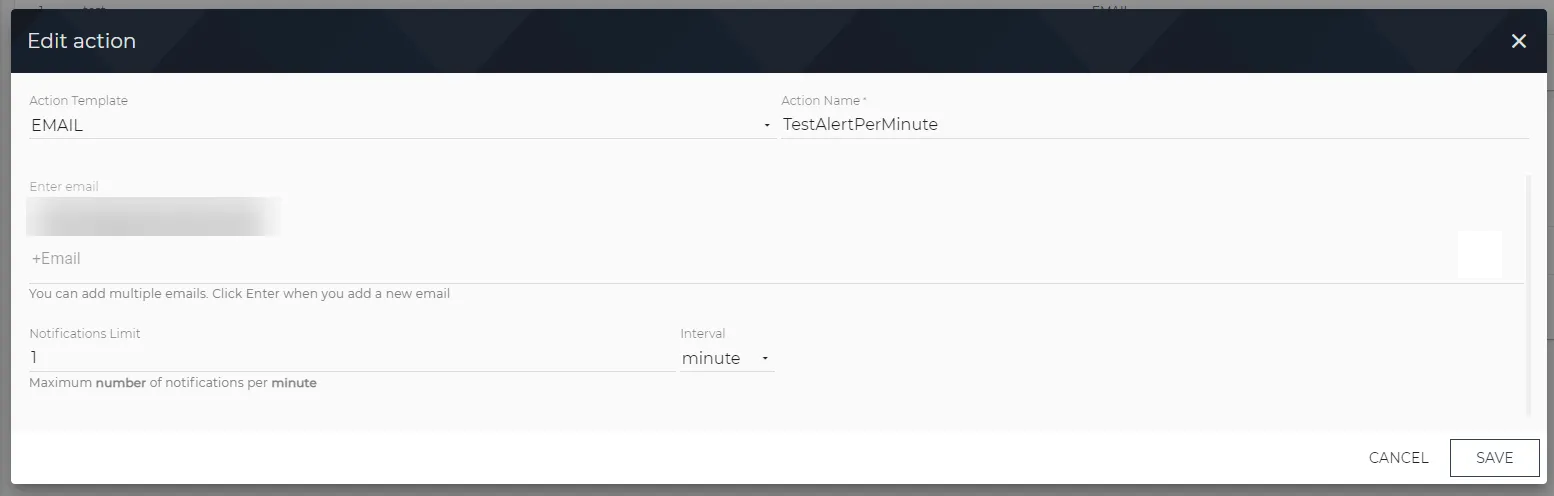
- From the Add new Action dialog box, enter the following details:
- Action Template: Select EMAIL.
- Action Name: Enter an action name.
- Enter email: Enter an email address that will receive the alert.
- Notifications Limit: Enter 1.
- Interval: Select minute.
- Click Add. The newly created action appears in the Action List.
Step 1b: Set Up a Trigger
To set up a trigger:
From the Events & Alerts pane, click the Add new Trigger icon. The New Trigger pane appears.
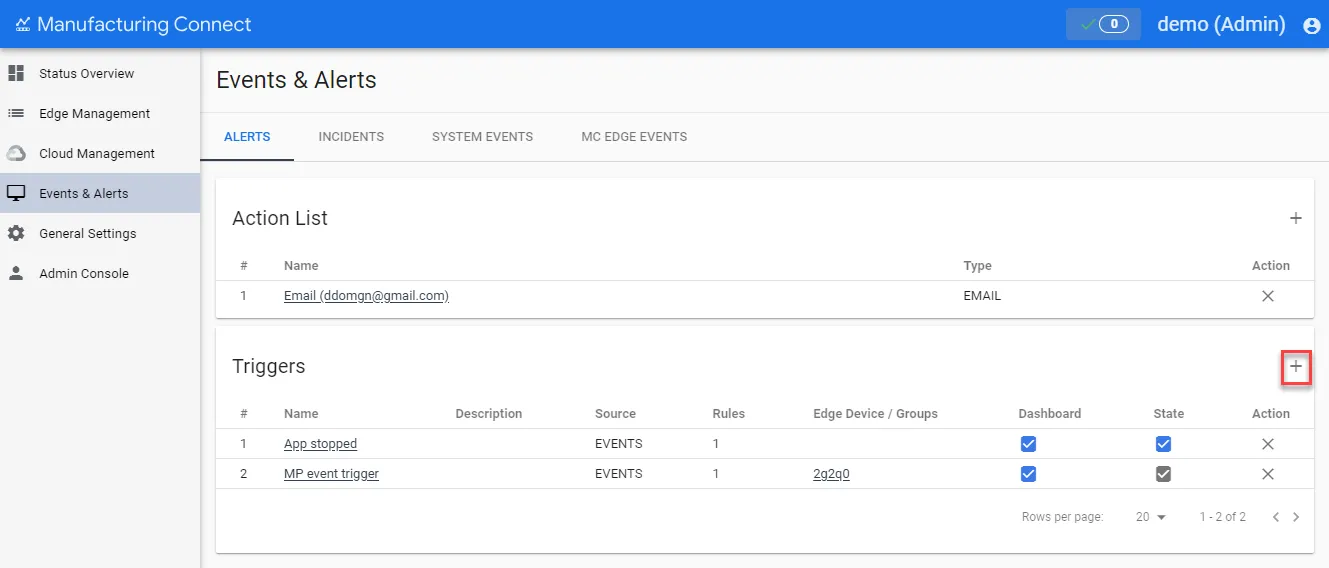
- From the New Trigger pane, configure the following sections.
Trigger
- Name: Enter a name for the trigger.
- Active: Select the checkbox.
- Dashboard: Select the checkbox.
- Description: Enter a description for the trigger.
Scope
Select Edge Device and select the appropriate MC Edge instance.
Source
- Select Metrics as the source of the trigger.
- Click Add new rule.
- Select Alert template: Select Connector online status.
- Enter the value 60 for Alert Delay, seconds.
Action
- Action List: Select the action you previously created.
- Continuously: Select the checkbox to send notifications continuously.
- Notification Period, minutes: Enter 1.
When done, click Save. The alert trigger appears in the Trigger List.
Step 2: Simulate a Disconnection
From MC Edge, you will simulate a disconnection with Manufacturing Connect.
To simulate a disconnection:
- Log in to Manufacturing Connect Edge.
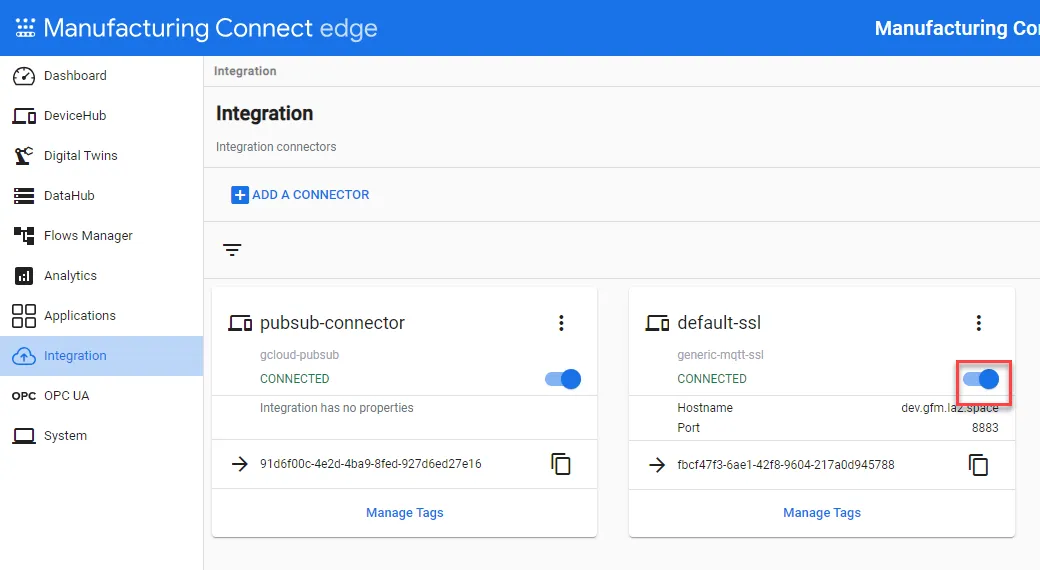
- From the navigation panel, select Integration. The Integration pane appears.
- From the generic-mqtt-ssl tile, click the toggle to disable the connector.
Step 3: Verify Successful Trigger and Alert
From Manufacturing Connect, you will verify the simulated disconnection.
To verify the trigger and alert:
- Log in to Manufacturing Connect. The Status Overview page displays.
- From the navigation panel, navigate to Events & Alerts > Incidents. The Incidents pane appears. Review that the incidents display in the list.
The email address that was configured for the alert will also receive the respective alert email.