2 min
This section covers email configurations settings for Manufacturing Connect Admin Console. To view email settings, toggle the Enable SMTP toggle.
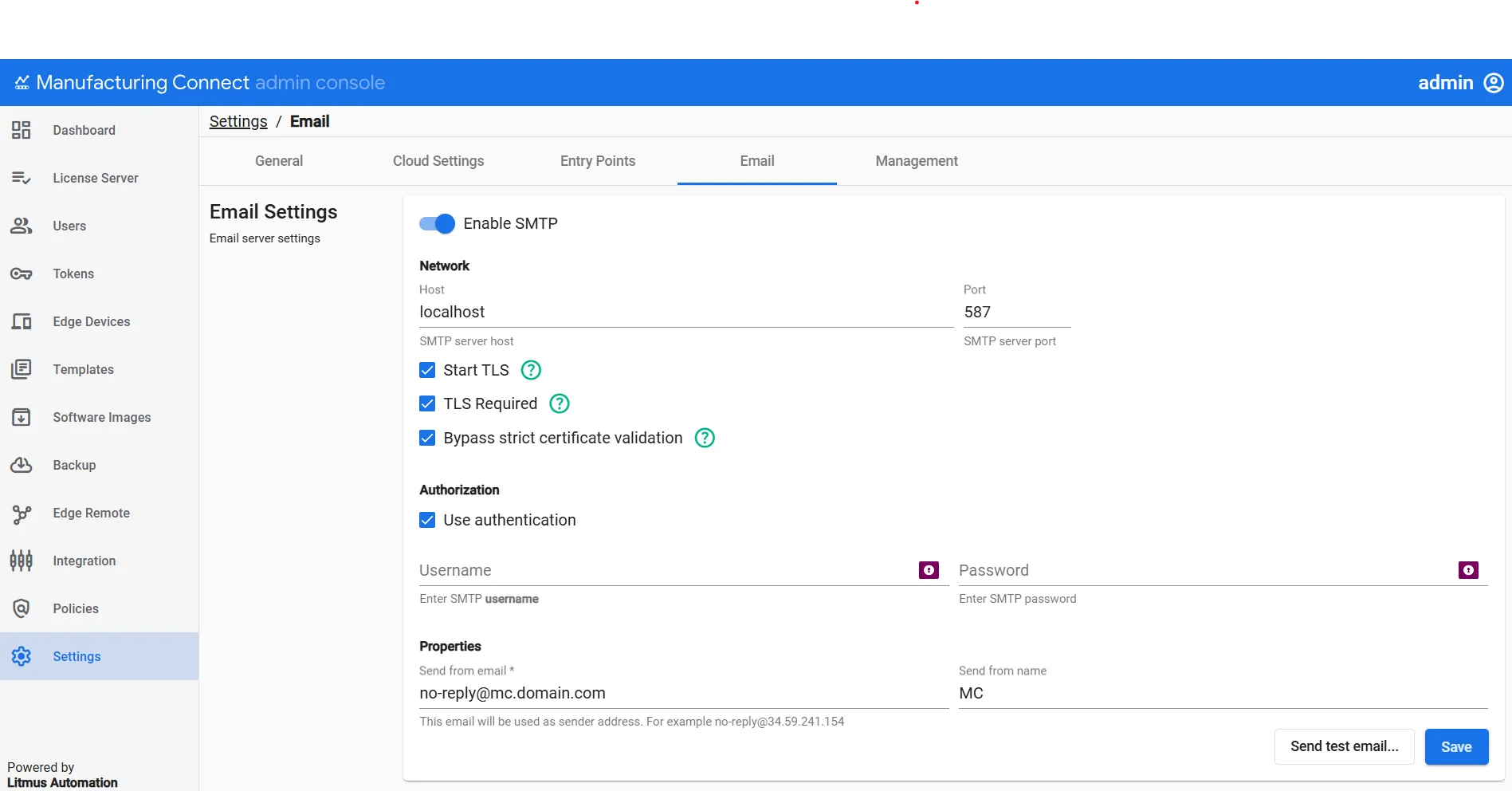
When configuring email settings, complete the following parameters:
- Enable SMTP: SMTP needs to be enabled to invite or add a project team member.
- Enter SMTP Server Host / IP address
Example: smtp:gmail.com
- Port: Enter port number
Example: port 25 for plaintext or port 587 for encrypted
- Start TLS: Enable this option if your SMTP server supports and requires the STARTTLS (Start Transport Layer Security) extension for initiating a secure connection. This is commonly used with port 587.
- TLS Required: If your SMTP server mandates a TLS (Transport Layer Security) encrypted connection, enable this option.
- Bypass strict certificate validation: Enable to specify a mail server as trusted when the server uses a self-signed or custom certificate.
- Use authentication: If your SMTP server requires authentication (username and password), enable this option. Most modern SMTP servers require authentication.
- (Use authentication-only) Enter Username: If authentication is enabled, provide the username for SMTP account, typically the full email address.
- (Use authentication-only) Enter Password: Enter the password associated with the SMTP username.
- Properties > Send from email: Specify the email address that will appear as the sender of emails from Manufacturing Connect.
- Properties > Send from name: Enter the name associated with the sender's email address
- Send Test Email: After configuring the settings, click the Send test email button to verify the configuration.
- A pop-up window will appear, prompting a recipient email address.
- Upon clicking Send, the system will attempt to send a test email to the specified address.
- A notification will indicate whether the test email was sent successfully or failed.