Manage Site License Allocation
You can manage site licenses and control data point allocation across companies and projects using your admin console. A site license provides a shared pool of data points that all connected Manufacturing Connect Edge instances can access, regardless of the company or project they belong to, as long as the total number of data points used does not exceed the site license limit.
The License Server tab in the Manufacturing Connect admin console allows for sub-allocating data points from this shared pool to specific projects, providing more granular management and preventing overconsumption by any single project.
This feature improves the flexibility and control over data point usage, ensuring fair allocation and distribution.
Important Notes:
- The license allocation feature is exclusively for site licenses and not for node-locked licenses.
- Even if a data point allocation has expired, the project might still be able to use more data points than the expired allocation if there are still available data points in the overall site license pool.
User Scenario
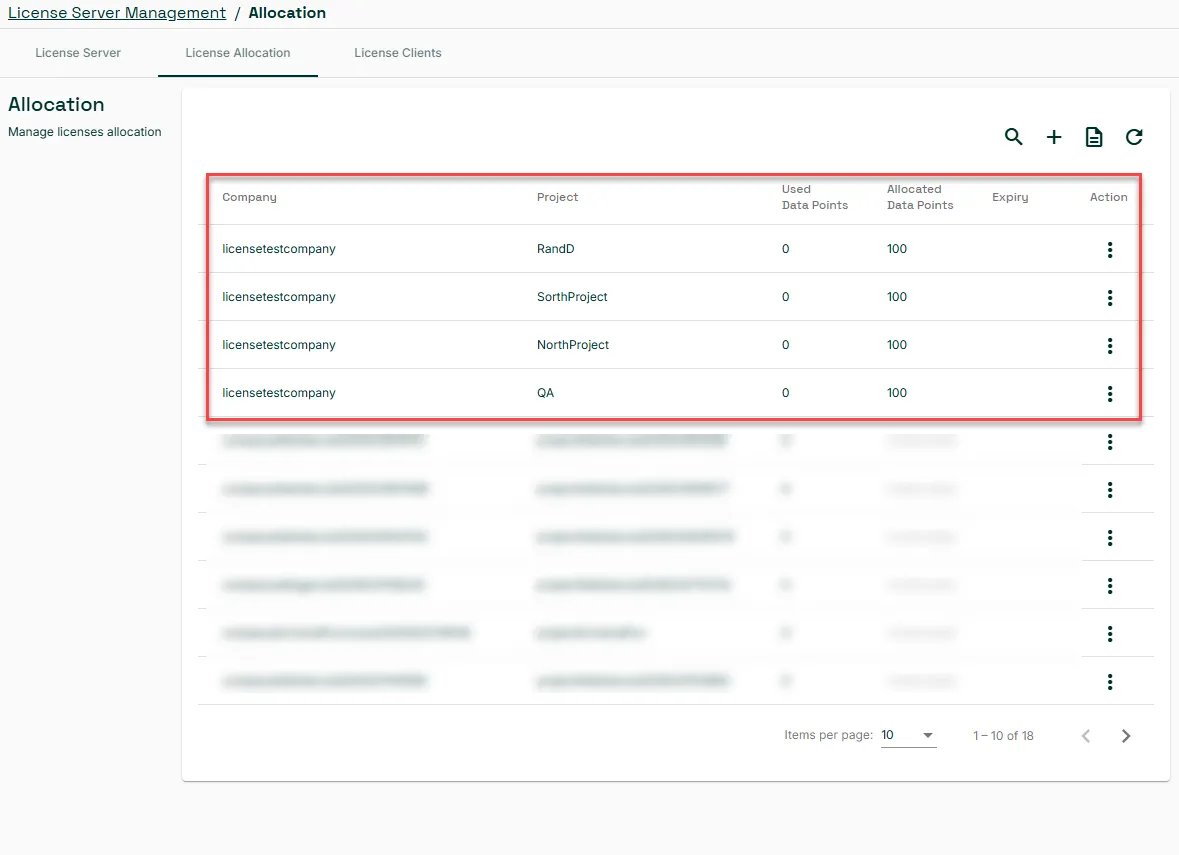
A manufacturing company holds a 1000-point site license and manages four key projects. To ensure effective resource allocation, the company has designated 100 points for the North project, 100 points for the South project, 100 for Research and Development (R&D), and 100 for Quality Assurance (QA). You can also specify any expiry date for the allocation of data points.
Before You Begin
Ensure that you have:
- A valid site license activated in Manufacturing Connect.
- Identified the company and project for which you want to allocate data points.
Step 1: Add a Company
Add a new company with a suitable name or select the appropriate company from your organization.
Step 2: Add a Project
Add four different projects with the following names: NorthProject, SouthProject, RAD, QA.
Step 3: Add an Edge Device(s)
See Activate an Edge Device for more details.
Step 4: Accessing the License Allocation Page
- Navigate to the Manufacturing Connect admin console > License Server Management. See License Server for more details.
- Click on the tab labeled License Allocation. On the License Allocation page, you can view the current data point allocations.
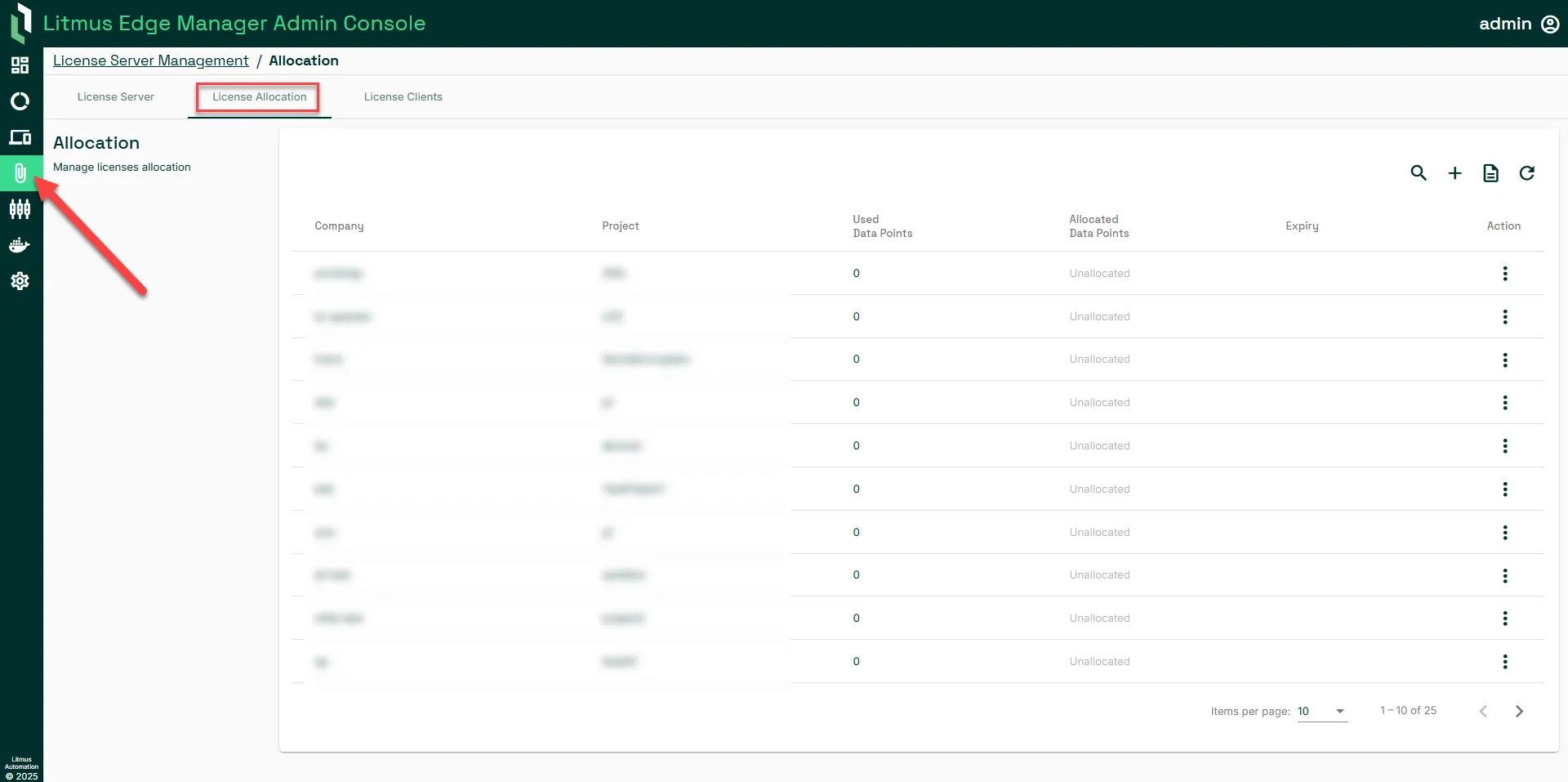
Step 5: Allocating Data Points to Project(s)
On the License Allocation page, click the Add allocation (+) to initiate a new data point allocation.
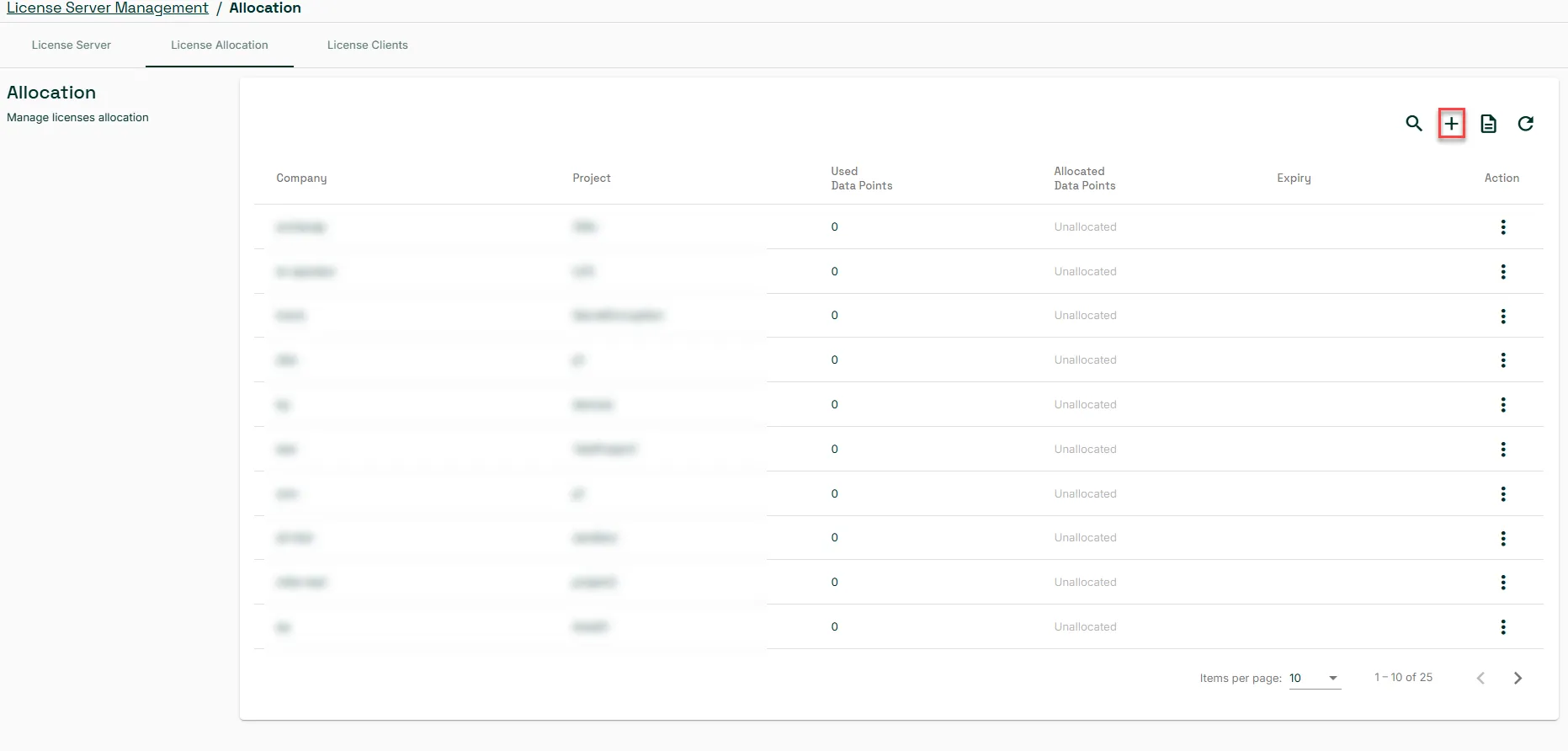
- The Edit Allocation dialog box appears. Take the following actions:
- Company / Project: Choose the company that contains the project for which you want to allocate data points.
In our case, select the company with all the projects we added in Step 2 above: NorthProject, SouthProject, RAD, and QA.
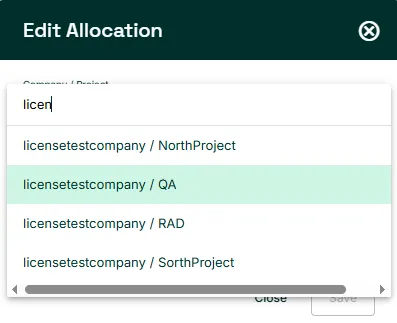
- Allocated Data Points: Enter the desired number of data points you want to allocate to the selected project in the designated field.
- Expiry Date: Set an expiry date for the data point allocation.
- Click on the calendar icon or enter the date to specify when the allocation should expire.
Click Save.
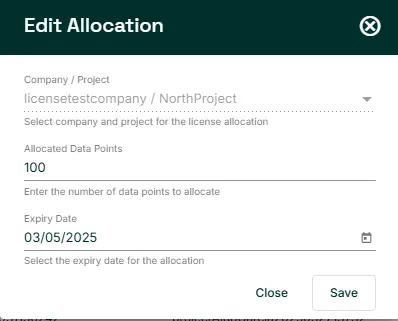
The new allocation will be visible in the allocations table. You can see the allocated data points, the expiry date, and how many data points are currently in use within that project.
Step 6: Managing Existing Data Point Allocations
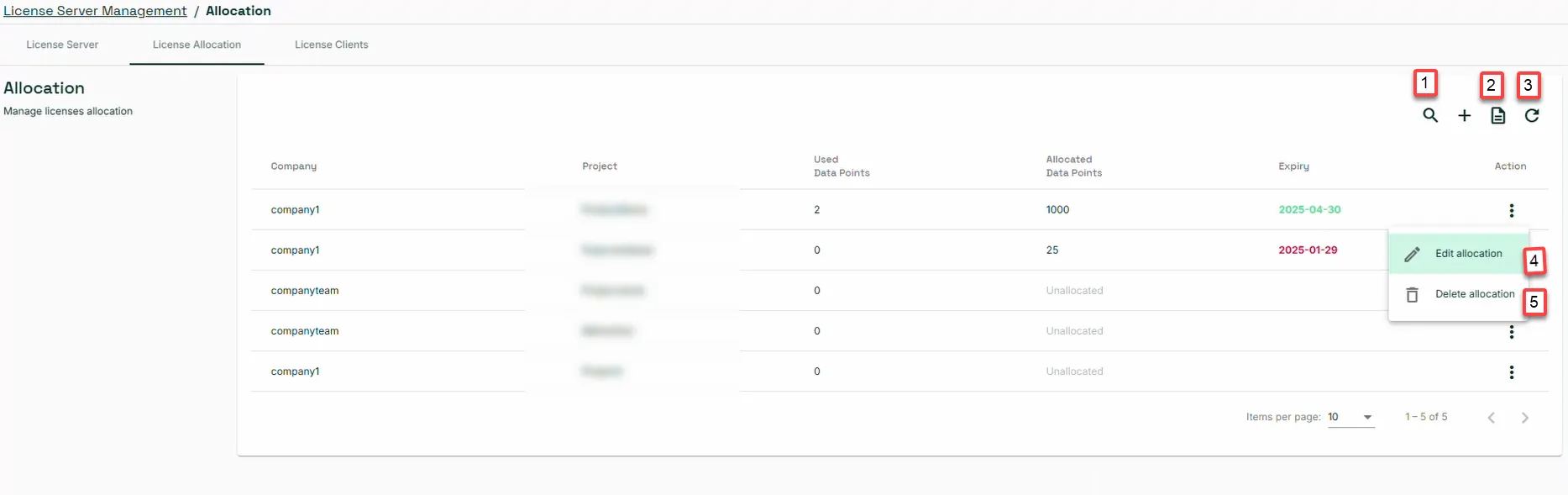
On the License Allocation page, you have several options to manage existing data point allocations via the action tab associated with each allocation:
Action | Details |
|---|---|
[1] Search | Use the search functionality to find specific allocations based on company, project, or other relevant criteria. |
[2] Export | Click this option to export the current allocation data in a CSV format. |
[3] Refresh | Click the refresh list icon to update the allocation table and display the most current information. |
[4] Edit Allocation | Click the edit option to modify the expiry date or increase the number of allocated data points for a project. |
[5] Delete Allocation | Click the delete option to remove the data point allocation that you have set for a project. |