Browse Tags
2 min
The Browse Tags functionality allows you to search, select, and download selected tags available for a device.
Devices that support searching for device tags display a tag icon in the bottom-right corner of the device card.
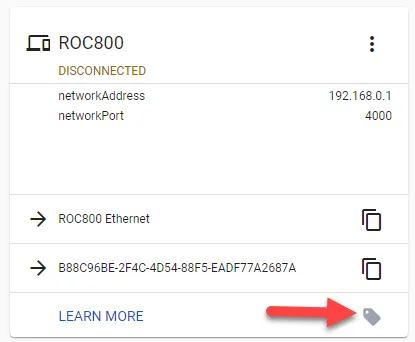
Browse tag option shown for a device
Notes:
- Make sure the device you are searching has a status of CONNECTED in DeviceHub. The pre-defined device tags in the Roc800 Ethernet driver are hard-coded in the device, so it doesn't need to be connected to browse tags.
- When browsing for tags with the BacnetIP driver, only tags with the property of Present_Value will be identified.
To browse tags:
From the Tags pane, click the Add Tag icon, and then select Browse Tags. The Browse Tags dialog box appears. For Manufacturing Connect Edge version 3.5.6 and earlier, click the Add New Tag icon.
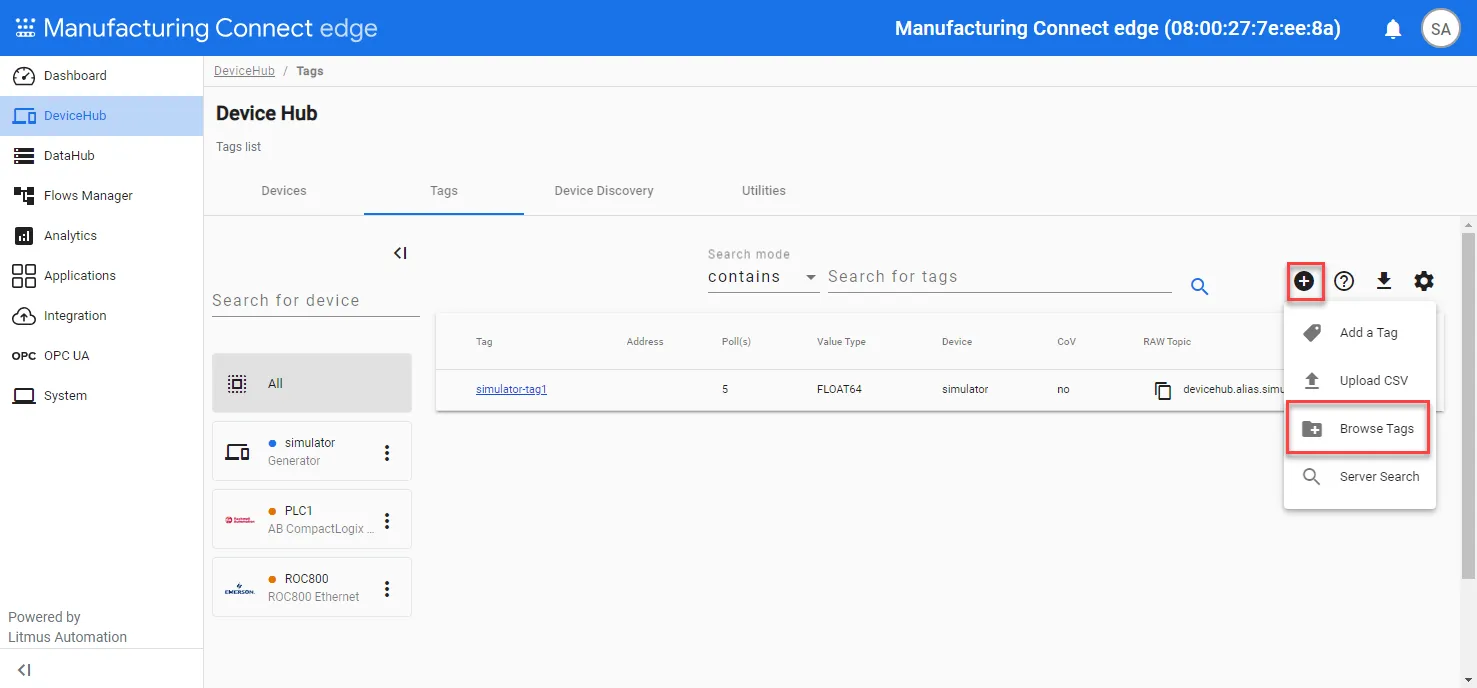
- Select a device from the Select Device drop-down list, and then click Add. The Tags List drops down in the Browse Tags dialog box.
Refer to the following tasks you can complete from the Browse Tags dialog box.
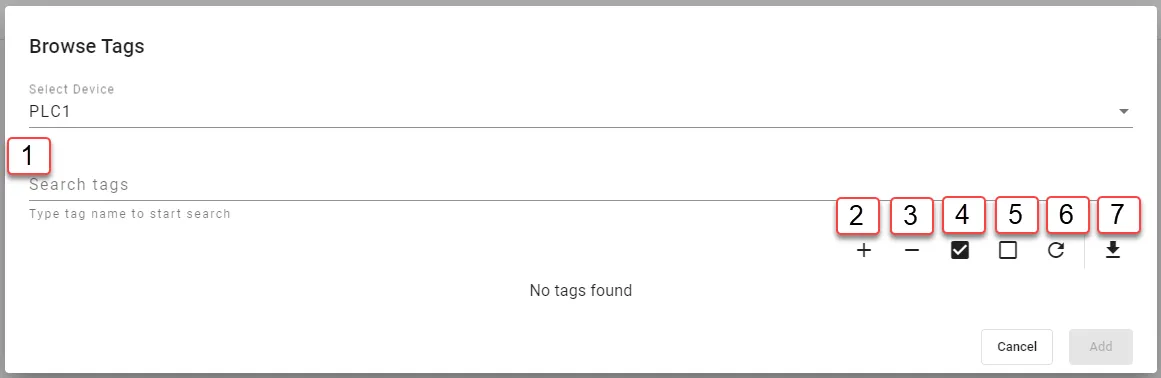
Browse Tags dialog box
[1] Search tags
[2] Expand all
[3] Collapse all
[4] Select all
[5] Clear selection
[6] Reload device tags
[7] Download tags as CSV