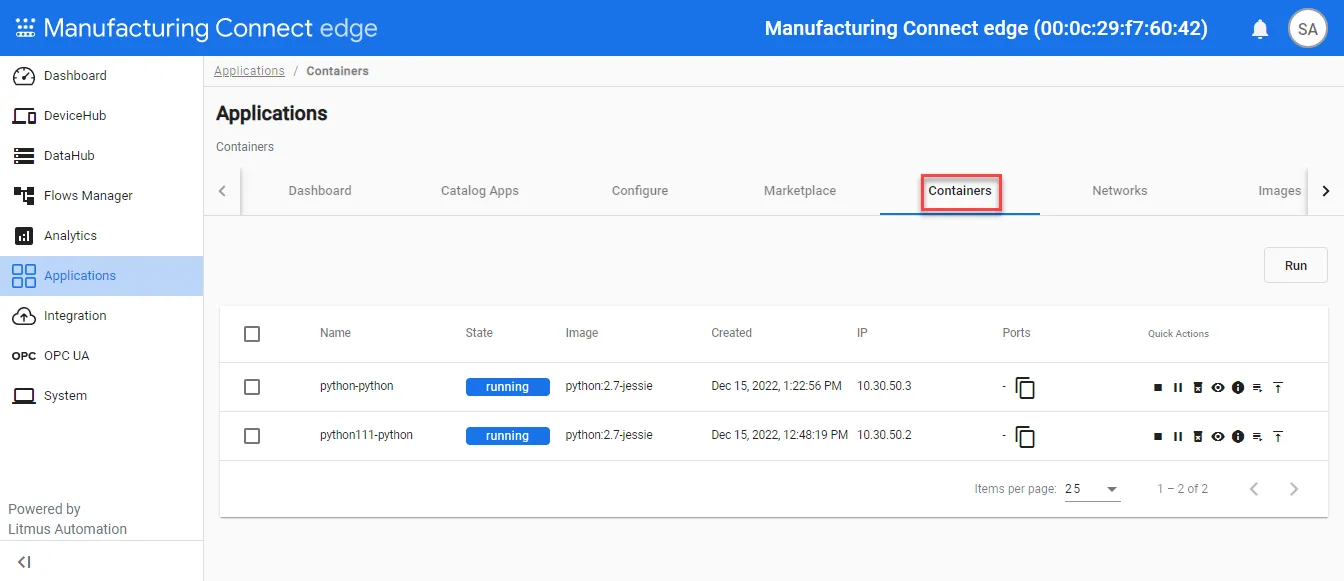
Containers
Manage Docker containers for all applications on the Applications > Containers page. Each installed application runs at least one container and can run multiple containers depending on the configuration.
When you install an application from a marketplace, its containers display here. You can also deploy a custom container using a Docker run command. See Overview of 'docker run' to learn more about docker run commands.
You can use the ModifyPrivileged privilege to control which users can launch containers in privileged mode. This lets you grant specific rights without granting full system access. For details, see the Marketplace role in Role Permissions.
All containers run on the Docker Engine located on the Manufacturing Connect Edge instance. If the instance becomes unavailable, so will all running containers. Each container's state is color-coded:
- A running container displays green
- A paused container displays orange
- An exited container displays black
Note: The Run button in the Containers pane can only be used for docker run commands. Other commands, including any other docker commands, cannot be used.
Access Applications Containers UI
To access the Applications Containers pane:
- Log in to Manufacturing Connect Edge.
- From the Navigation panel, select Applications. The Dashboard pane appears.
- Click Containers. The Containers pane appears.