How to Create OAuth 2.0 Tokens
2 min
You can create and use OAuth 2.0 tokens for accessing Edge APIs.
Generating an OAuth 2.0 Token in Manufacturing Connect Edge
To create an OAuth 2.0 token:
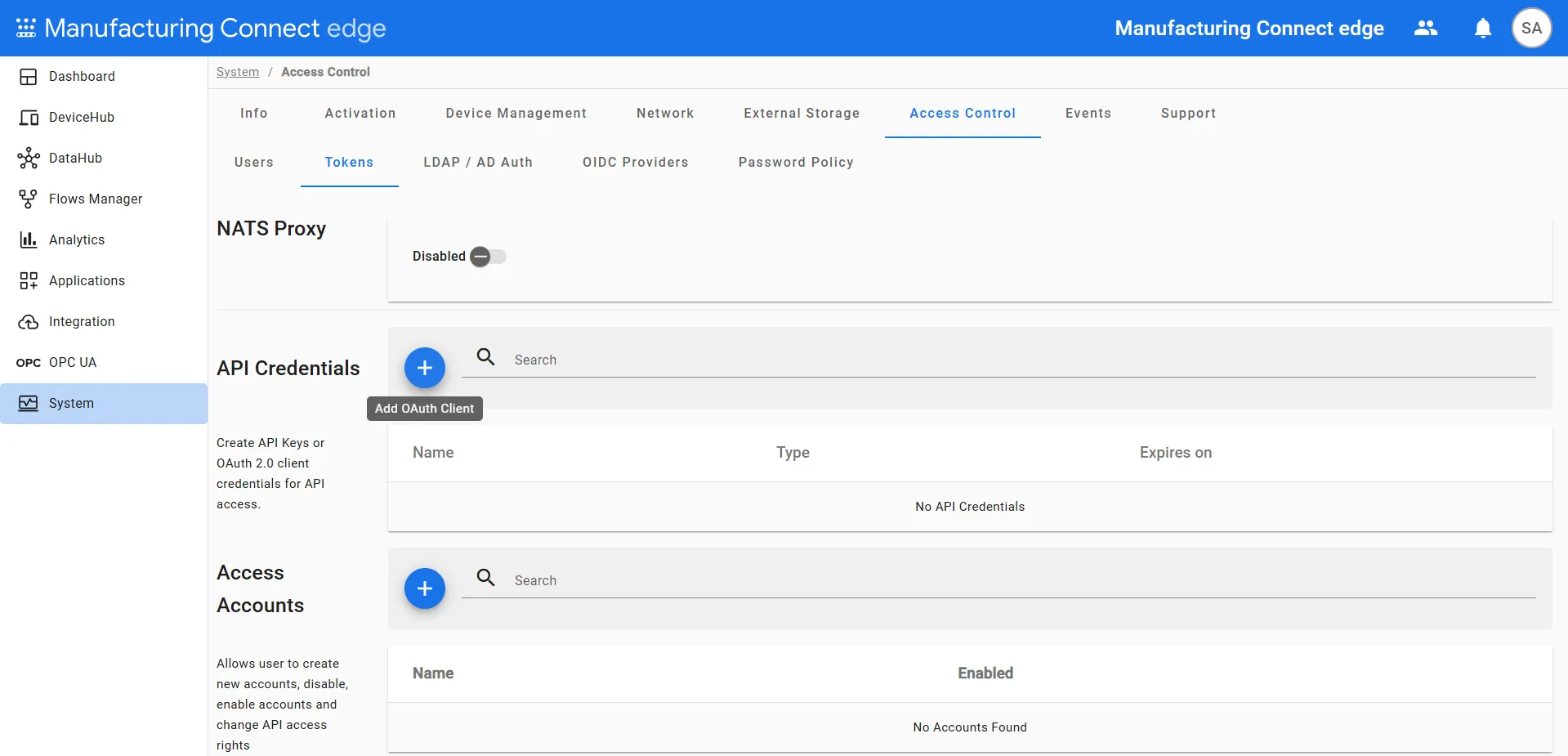
- Navigate to System > Access Control > Tokens.
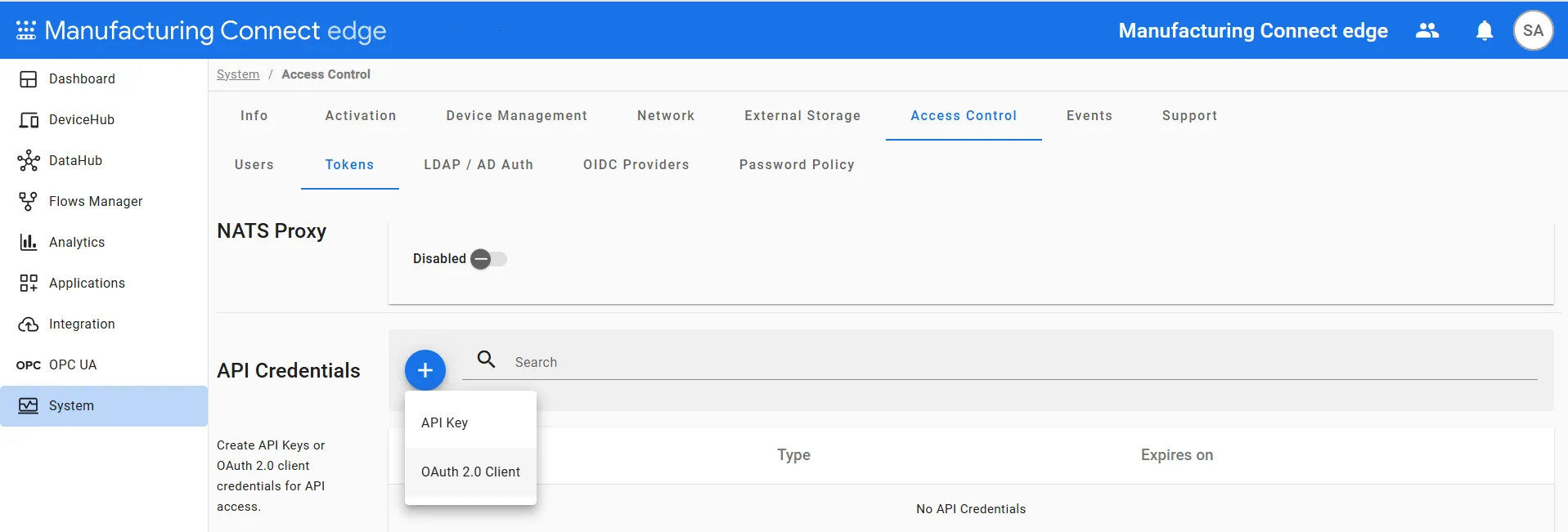
In API Credentials, click Add OAuth Client.
Select OAuth 2.0 Client as the credential type.
- Configure the following token settings:
- Provide a Token Name.
- Assign the token to appropriate RBAC (Role-Based Access Control) groups.
- (Optional) Set an Expiration Date for the token.
- Define the Access Token Lifespan in minutes.
Click Add.
 Add OAuth client dialog box
- Manufacturing Connect Edge will generate Client ID and Client Secret.
Copy and securely store the Client ID and Client Secret. These values are shown only once.

Using OAuth 2.0 Token with Postman
To use OAuth 2.0 token with Postman:
Click New Request.
 Postman home
- Create a new request and select either GET or POST based on your needs.
- Navigate to the Authorization tab.
Select OAuth 2.0 from the Auth Type dropdown.
 Postman > Authorization
- Under Configure New Token:
- Token Name: Enter a name for this token configuration.
- Grant Type: Select Client Credentials.
- Access Token URL: Enter the token endpoint: https://<Manufacturing Connect Edge URL>/auth/v3/oauth/token.
- Client ID: Enter the Client ID generated in Manufacturing Connect Edge.
- Client Secret: Enter the Client Secret generated in Manufacturing Connect Edge.
- Scope: Leave this field empty (if not required).
Client Authentication: Choose Send as Basic Auth header.
 Configure New Token tab
- Click on Get New Access Token. Postman retrieves the token and displays it in the Access Token field.
- Add the Authorization Token to your request. The token is automatically added to the headers by Postman.
- Click Send to execute the API request.
- Verify the response from the server.