Configure transformations
A transformation converts the raw JSON data on a topic into a format that northbound systems can consume. You define a transformation as a schema in a Manufacturing Connect Edge model, apply it to a dynamic attribute, and the transformed result replaces the raw data in the instance payload.
This topic shows you how to add a transformation schema, test it, and apply it to a dynamic attribute. For the rest of the model, see Create and configure a model.
Note: Also see Digital Twins for overview and background information.
Before you begin
Before you configure a transformation, make sure you have:
- A model with at least one dynamic attribute.
- Sample data from the topic that feeds the attribute so you can test the schema in the playground.
JSON or JSONata
Schema type | What it does | Use it for |
|---|---|---|
JSON | Filters the payload to a specific set of key-value pairs | Stripping unwanted fields from a data source |
JSONata | Applies conditional logic, computed values, and dynamic filtering | Alerts, computed outputs, or reformatting timestamps |
JSONata schemas use the JSONata query language.
Add a transformation schema
To define a schema in the model:
- Click the Transformation tab, then click Add a Schema.
- Enter a name for the schema.
- From the Schema Type drop-down menu, select JSON or JSONata.
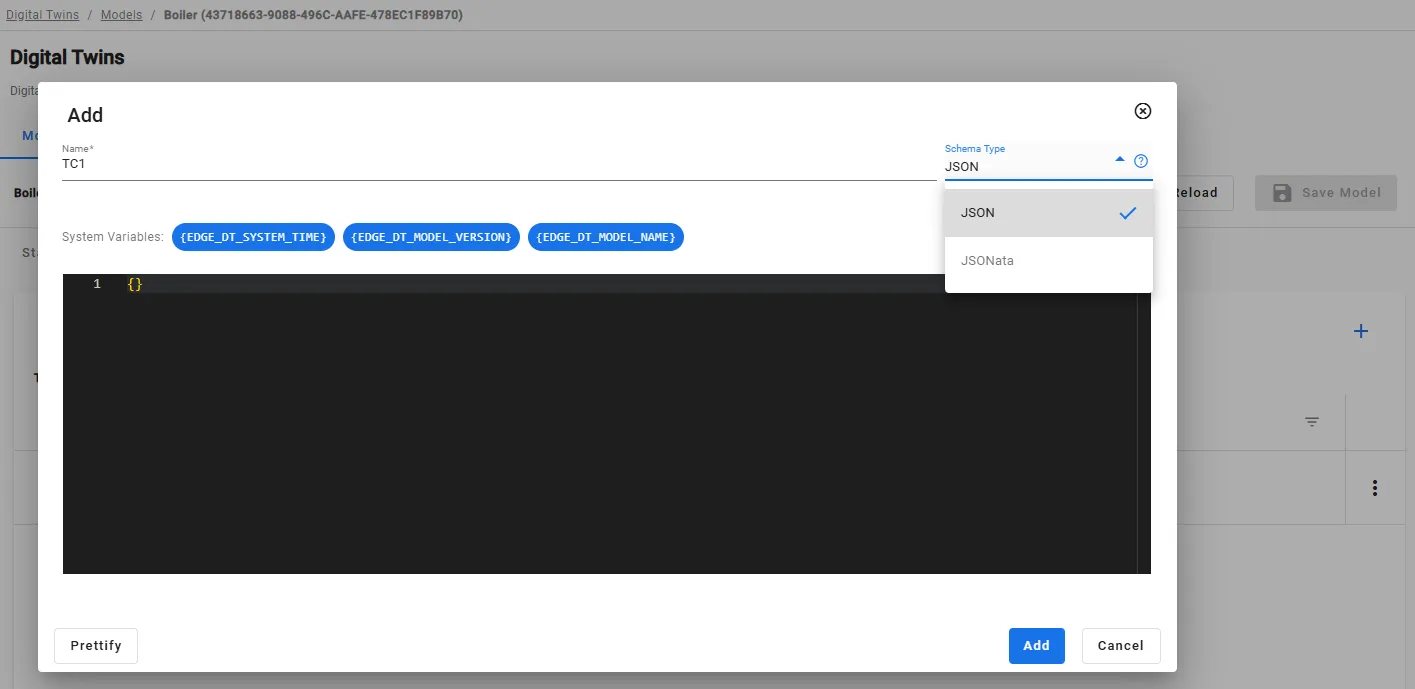
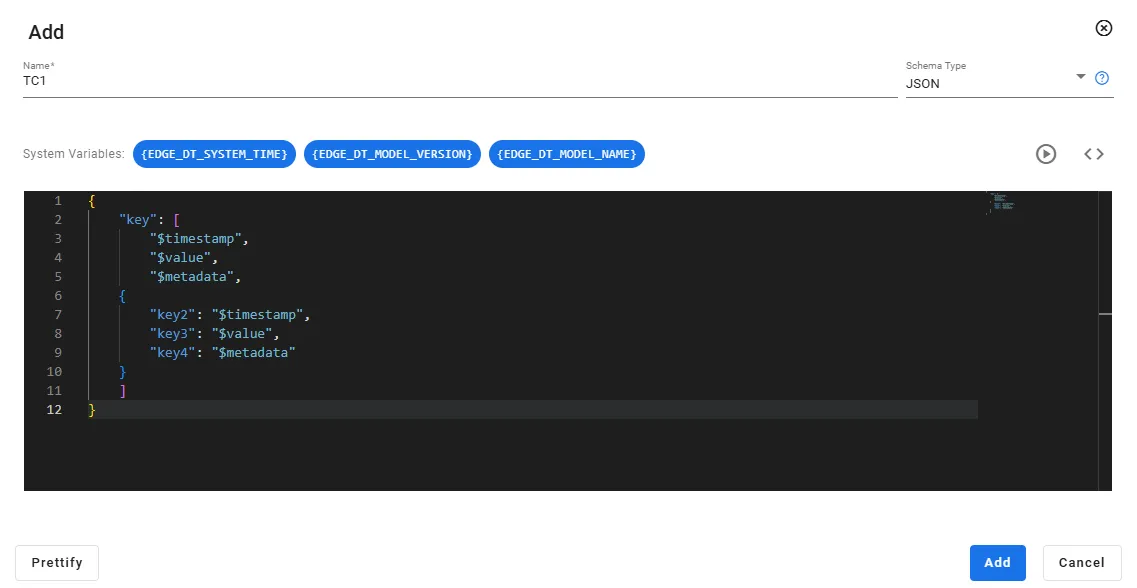
- In the code window, paste the JSON or JSONata schema.
- Optionally, select system variables from the code drawer to insert them into the schema. See System variables.
Test the schema in the playground
A schema that returns the wrong shape reaches every instance payload built from the model. Test it in the playground before you apply it to an attribute.
To test the schema:
- In the playground, enter sample data from the topic that feeds the attribute. The playground displays the transformed output.
- Compare the transformed output with the output you expect.
- Adjust the schema until the output matches.
- Click Add. The schema appears in the Transformation tab.
Apply the schema to a dynamic attribute
A schema takes effect only on the attributes that reference it. You can apply the same schema to more than one dynamic attribute.
To apply the schema:
- Click the Dynamic Attributes tab.
- Select the dynamic attribute you want to transform.
- In the SchemaID field, select the schema.
- Click Save Model.
To edit or delete a schema, click the Action menu for the schema in the Transformation tab and select Edit or Remove.
System variables
Use system variables to add model and instance context to a transformed payload. Select them from the code drawer in the schema editor.
Variable | Inserts |
|---|---|
{EDGE_DT_SYSTEM_TIME} | The device system time when the payload is published |
{EDGE_DT_MODEL_VERSION} | The version of the model the instance was created from |
{EDGE_DT_MODEL_NAME} | The name of the model the instance was created from |
{EDGE_DT_MODEL_ID} | The unique identifier of the model |
{EDGE_DT_INSTANCE_ID} | The unique identifier of the instance |
Verify the transformation works
Note: An instance runs against the model version it was created from. Click Upgrade Instances on the model to apply a new or changed schema to an existing instance.
To confirm the transformation is applied:
- Navigate to Digital Twins > Instances.
- Select an instance created from the model.
- Click the Data Access tab.
- Subscribe to the instance topic. The Data Access tab displays the assembled payload.
- Confirm that the dynamic attribute shows the transformed shape rather than the raw data.