Server Search
The Server Search option allows you to do a search of available tags for your device and then add those tags to the DeviceHub device.
Devices that support searching for device tags display a tag icon in the bottom-right corner of the device card.
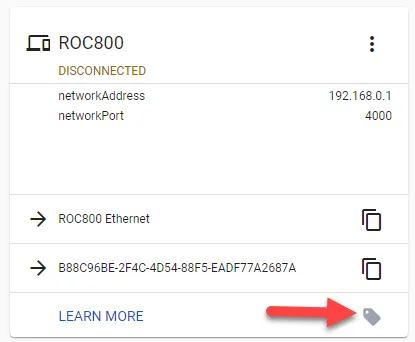
Note: To use Server Search, you must know the tag names you want to add to your DeviceHub device and search for them before adding them. To view all available tags for a device before adding them, you can use Browse Tags instead.
To use the server search:
From the Tags pane, click the Add icon, and then select Server Search. The Server Search dialog box appears.
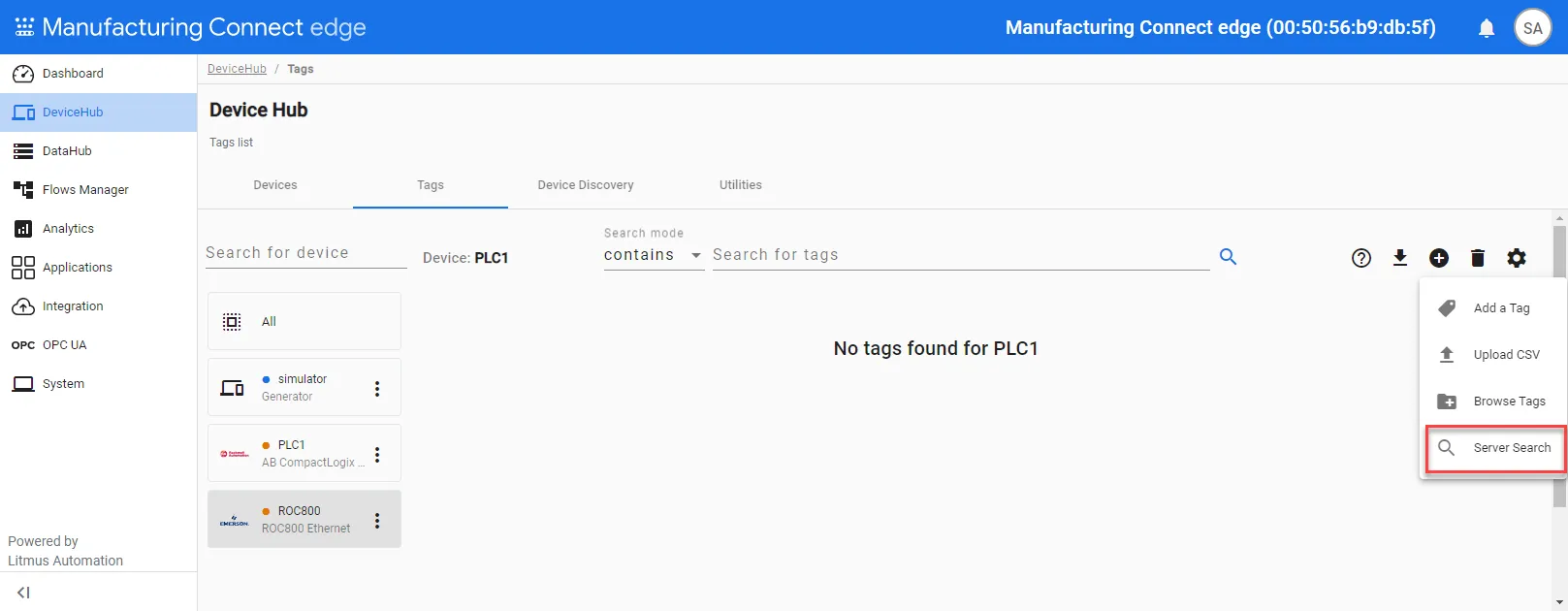 Server Search option
From the Select Device drop-down list, select the device you want to search tags for.
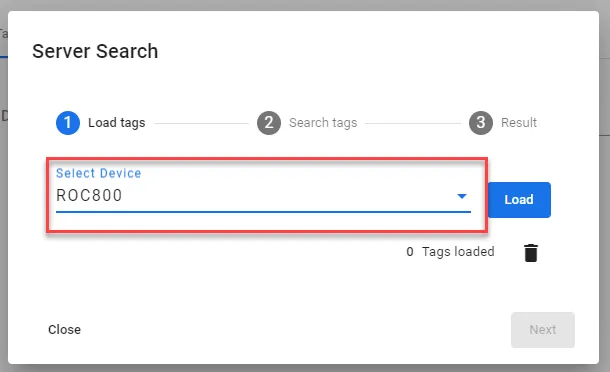 The Select Device drop-down list
- Click Load.
- Once the search finishes, click Next.
In the TagName field, enter a search term for a tag you want to add and click the Search icon.
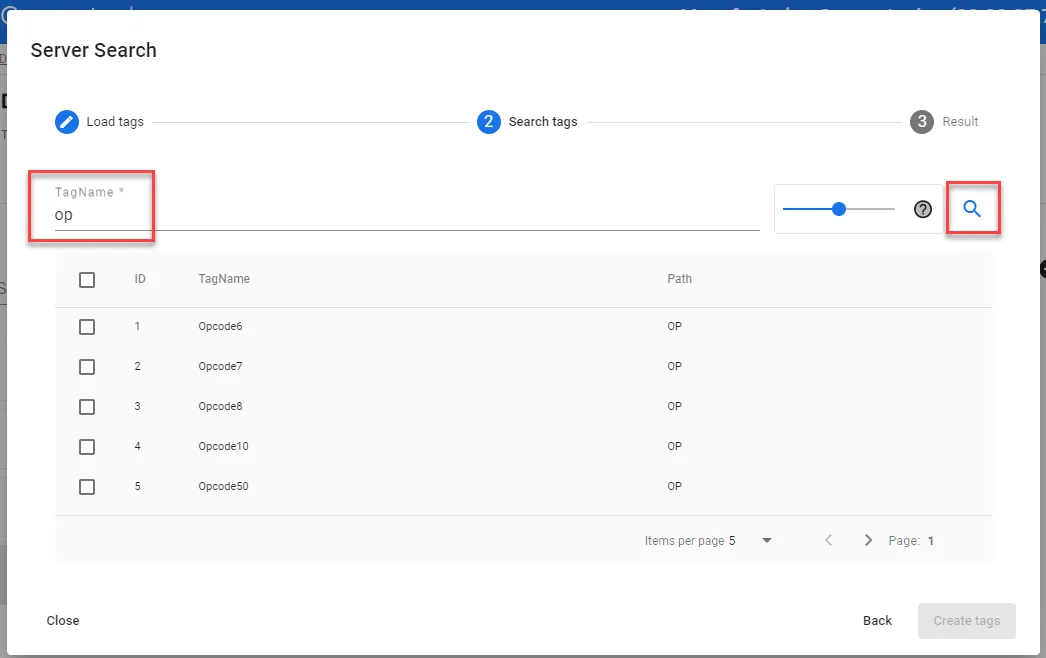
If needed, move the Similarity Value selector to refine your search. Values range from 0 to 1. A value of 0 means all possible matches for the search term display. A value of 1 means only tags that match the search term exactly display.
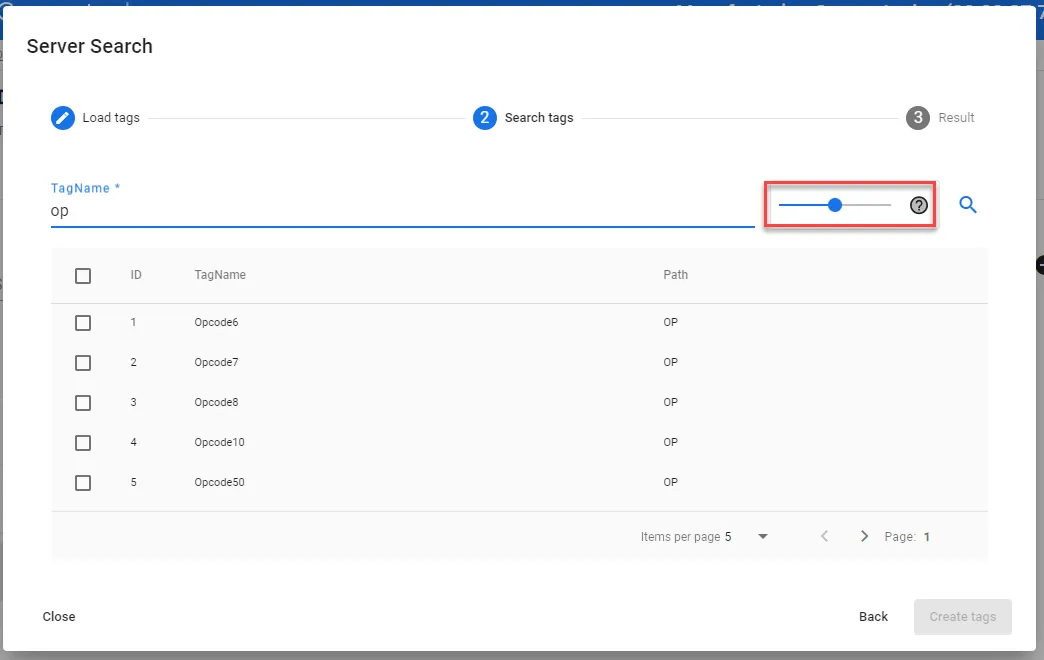 Similarity value selector
- Click check boxes for the tag(s) you want to create, and then click Create tags. The tag is automatically added to the device and the Result section appears.
- Do one of the following:
- Click Close to close the dialog box.
- Click Reset to remove the added tag.
- Click Back to return to the Search tags section and add more tags.