Use the Expression Processor Function
You can use a single input or multiple inputs to create a mathematical expression with your desired topic.
Single inputs use events or values-type connection and multiple inputs use only values-type connection.
User Scenario
Review the following scenario for the expression processor function. Then, you will simulate PLC data and calculate mathematical expression outputs using the expression processor function.
User Scenario 1 (Using one Input Function)
In a cold storage facility, maintaining the right humidity levels is crucial for preserving the quality of perishable goods. An alert system needs to be in place to signal if the humidity goes beyond the acceptable range.
Expression for Humidity Alert: (Humidity_value < 30 || Humidity_value > 50) ? "Alert: Humidity Out of Range" : "Humidity Normal"
User Scenario 2 (Using multiple Input Functions)
In a solar power plant, it's essential to constantly monitor the efficiency of solar panels to ensure optimal energy production. Efficiency can be calculated based on the ratio of the output power to the input solar radiation, along with the surface area of the solar panel.
Expression for Efficiency Calculation: (P_value / (S_value * Area_value)) * 100
Step 1: Add a Device
Follow the steps to Connect a Device and configure the following parameters:
- Device Type: Simulator
- Driver Name: Generator
- Enable Alias Topics: Select the checkbox.
Step 2: Add Tags
After connecting the device, add the following tags. See Add Tags to learn more. Each tag will represent one of the user scenario mentioned above.
Tag 1 (User Scenario 1)
- Name: Select S - Random value generator.
- Value Type: Select int64.
- Polling Interval: Enter 5.
- Tag Name: Enter Humidity.
- Min Value: Enter 25.
- Max Value: Enter 55.
Tag 2 (User Scenario 2)
- Name: Select S - Random value generator.
- Value Type: Select float64.
- Polling Interval: Enter 5.
- Tag Name: Enter Power.
- Min Value: Enter 75.
- Max Value: Enter 100.
Tag 3 (User Scenario 2)
- Name: Select S - Random value generator.
- Value Type: Select float64.
- Polling Interval: Enter 5.
- Tag Name: Enter Solar_Radiation.
- Min Value: Enter 50.
- Max Value: Enter 75.
Tag 4 (User Scenario 2)
- Name: Select S - Random value generator.
- Value Type: Select int64.
- Polling Interval: Enter 5.
- Tag Name: Enter Area.
- Min Value: Enter 250.
- Max Value: Enter 500.
Step 3: Create Analytics Flows
You can now create the analytics flows using data from the device and tag you previously created. Follow the appropriate step out of 3a or 3b based on the two user scenarios for the Expression processor function you want to use.
Step 3a: Configure Single Input Expression (User Scenario 1)
- Navigate to Analytics.
On the analytics canvas, click Add processor. The Create a processor dialog box displays.
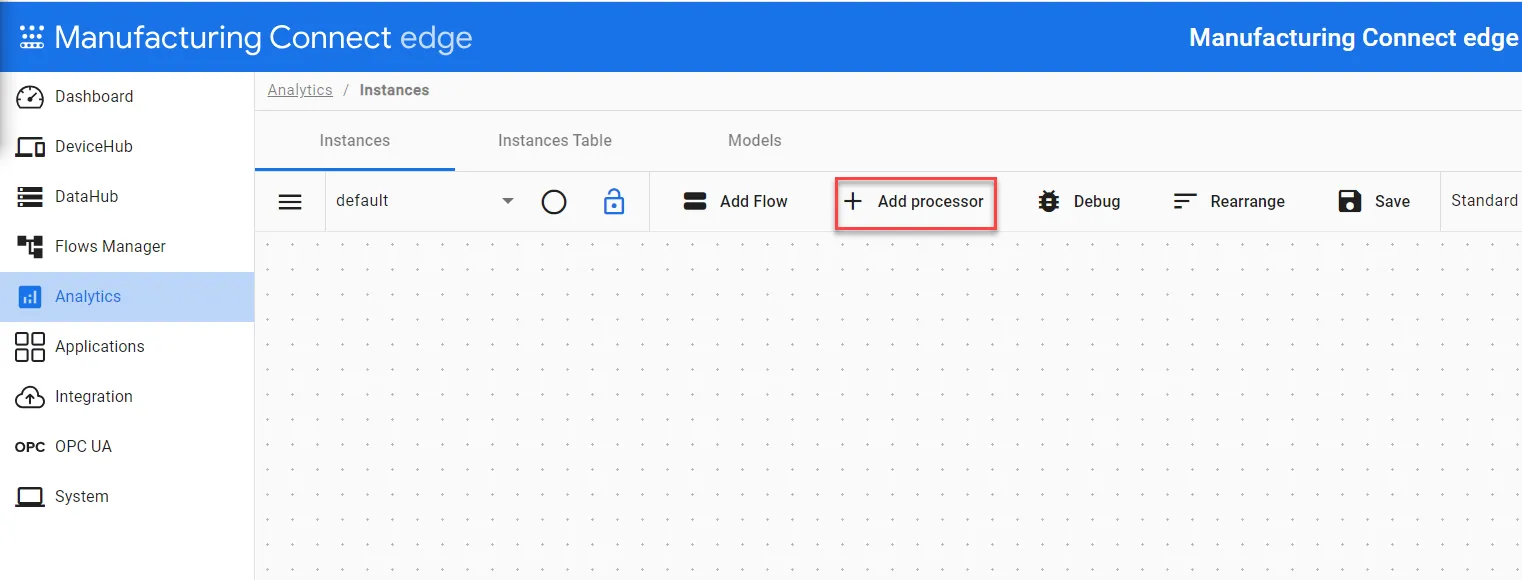 The Add processor option
- Select DataHub Subscribe.
In the Topic field, click the Search icon, select the device you previously created, and then select the alias topic for the Humidity tag.
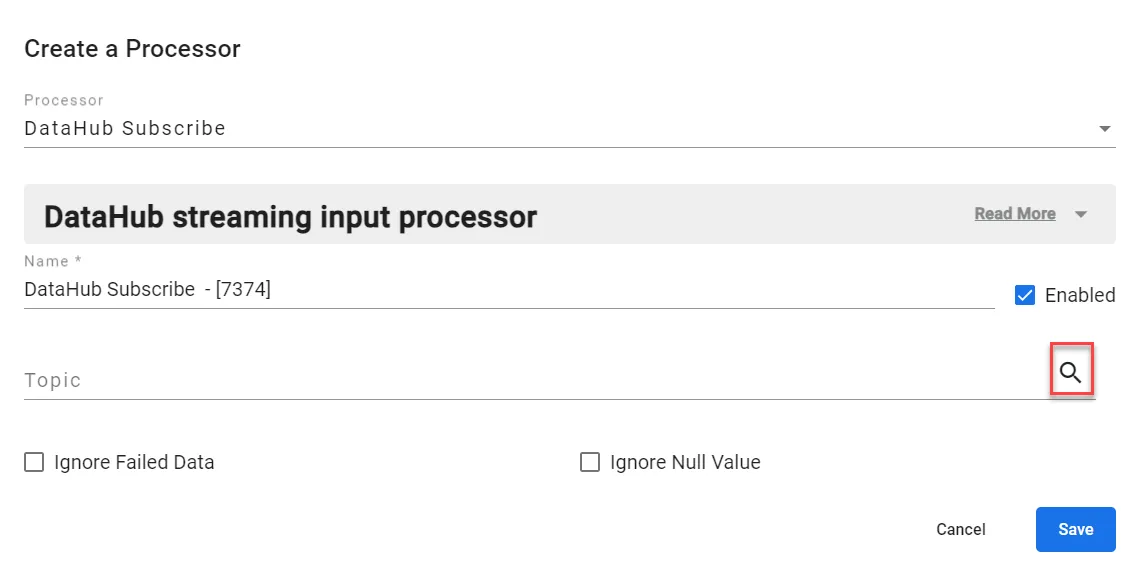 Create a Processor dialog box
- Click Save.
- Click Add processor again and select Expression processor. The following information defines this function:
- Expression: Enter the mathematical expression from the user scenario 1. You must define the connection of the input tag as a variable name (Humidity) and then use that in the mathematical expression (such as Humidity_value).
- Output Field Name: Enter value as the field to appear in the output.
Click Save.
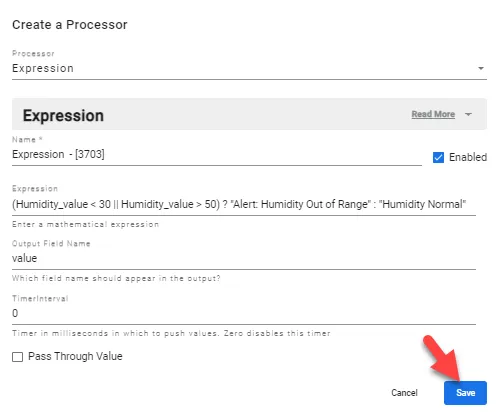 Expression processor dialog box
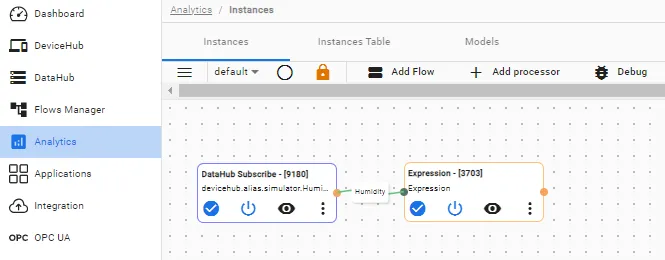
- Connect the DataHub Subscribe processor (tag: Humidity) to the Expression processor with a wire and enter the definition of Humidity for the value-type connection.
- On the analytics canvas, click Save.
The configured analytics flows should look like the following:
Step 3b: Configure Multiple Inputs Expression (User Scenario 2)
- Navigate to Analytics.
On the analytics canvas, click Add processor. The Create a processor dialog box displays.
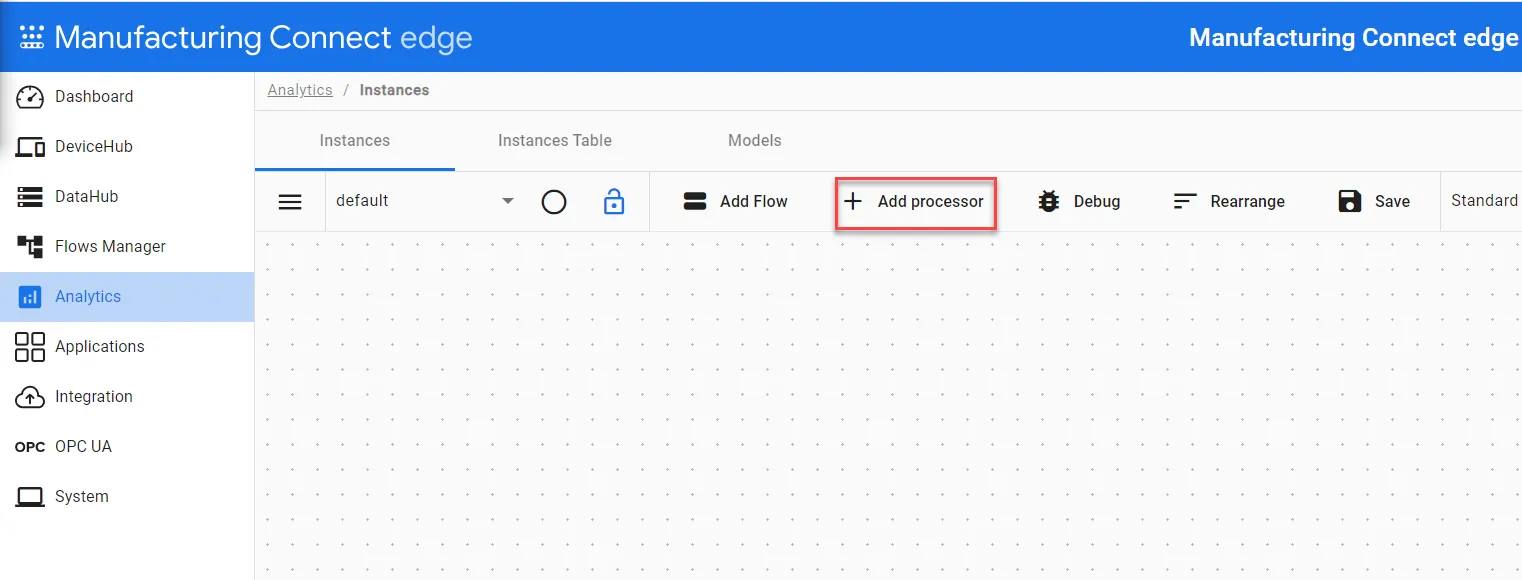 The Add processor option
- Select DataHub Subscribe.
In the Topic field, click the Search icon, select the device you previously created, and then select the alias topic for the Power tag.
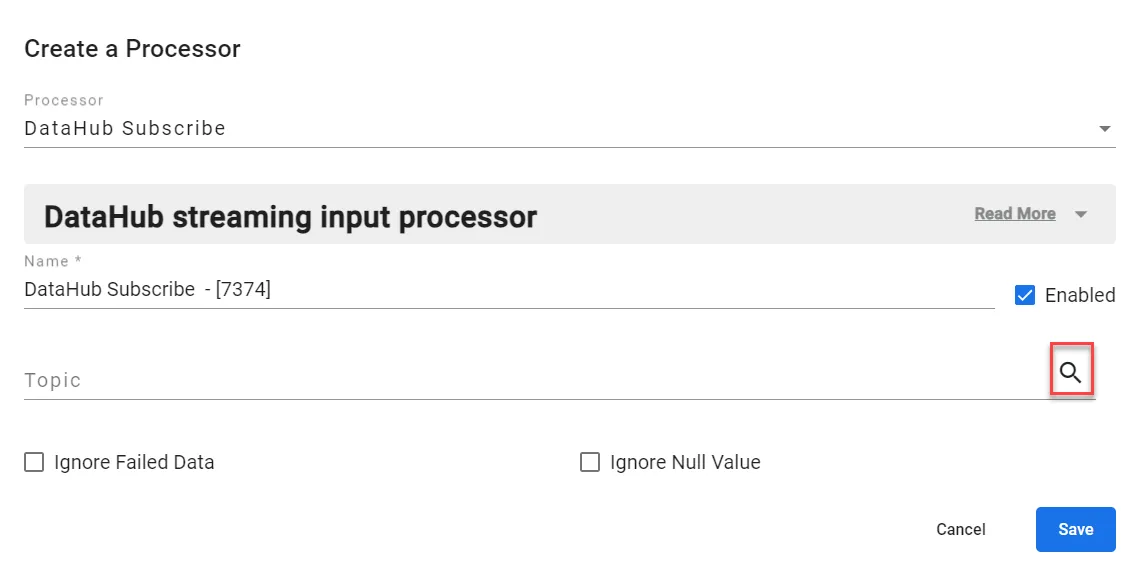 Create a Processor dialog box
- Repeat steps 2-4 in Step3b to add another DataHub Subscribe node. Select the alias topic for the Solar_radiation and Area tag respectively.
- Click Save.
- Click Add processor again and select Expression processor. The following information defines this function:
- Expression: Enter the mathematical expression from the user scenario 2. You must define the connection of the input tag as a variable name (P, S, Area) and then use that in the mathematical expression (such as P_value, S_value, and Area_value).
- Output Field Name: Enter value as the field to appear in the output.
Click Save.
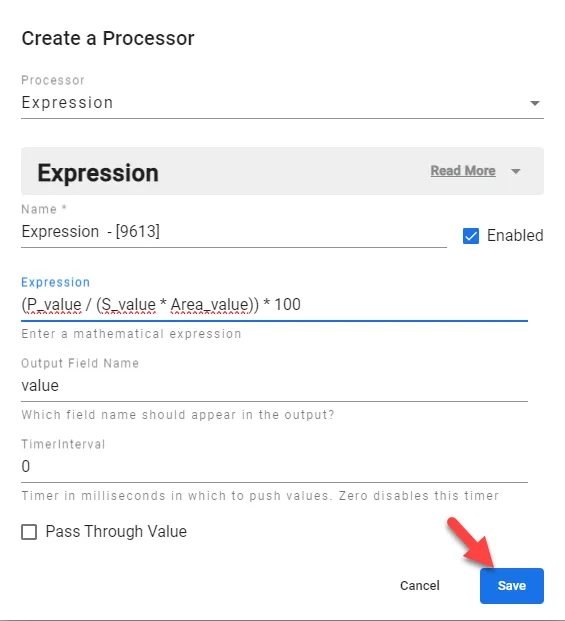 Exression processor dialog box
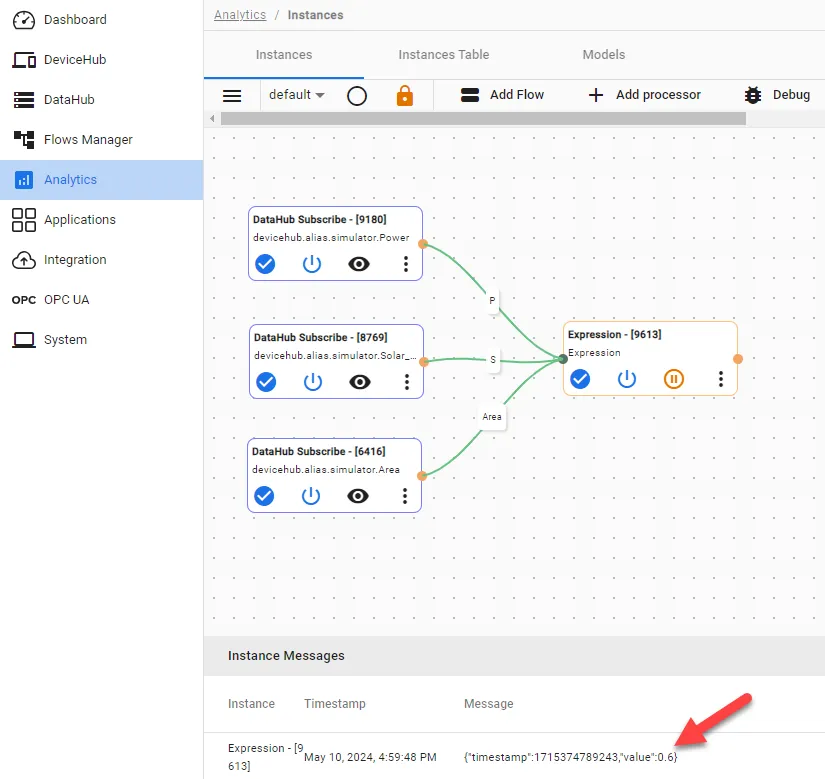
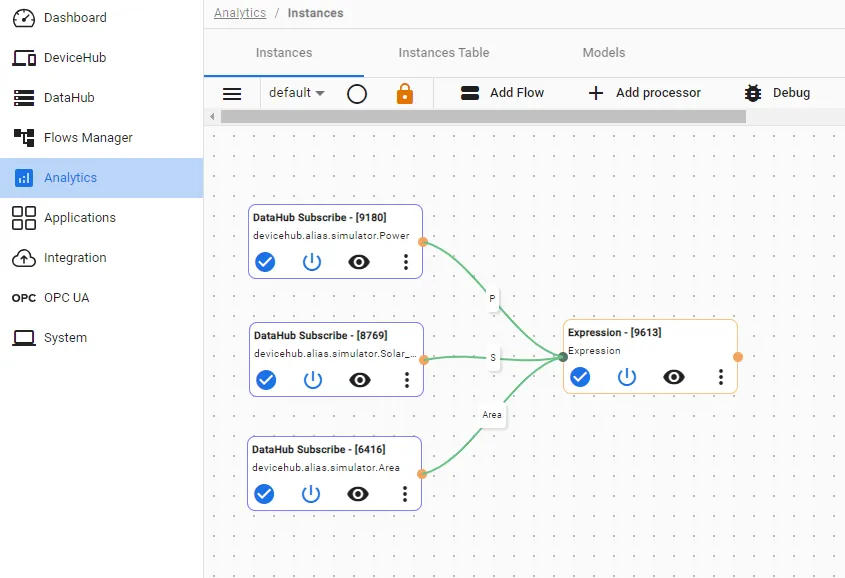
- Connect the DataHub Subscribe processor (tag: Power) to the Expression processor with a wire and enter the definition of P for the value-type connection.
- Connect the DataHub Subscribe processor (tag: Solar_Radiation) to the Expression processor with a wire and enter the definition of S for the value-type connection.
- Connect the DataHub Subscribe processor (tag: Area) to the Expression processor with a wire and enter the definition of Area for the value-type connection.
- On the analytics canvas, click Save.
The configured analytics flows should look like the following:
Step 4: View Output of Processor
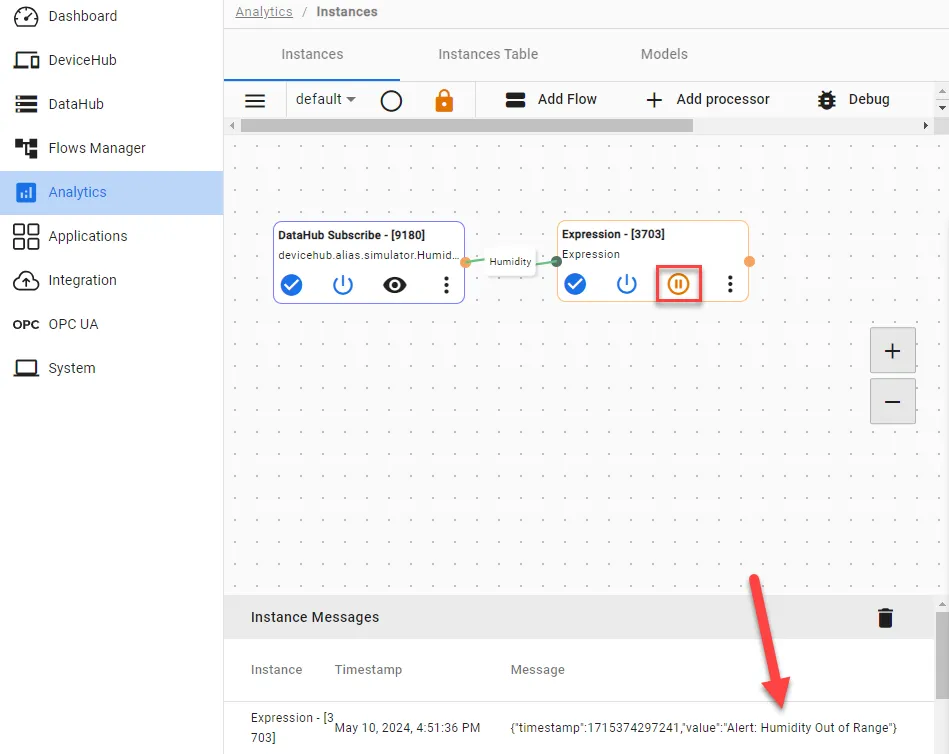
Click the View icon in the Expression processor to view the output values.
View Output for User Scenario 1
The expression function calculates the humidity from the defined tag values and gives the output for the mathematical expression.
View Output for User Scenario 2
The expression function calculates the efficiency from the defined tag values and gives the output for the mathematical expression.