Use the Join Processor Function
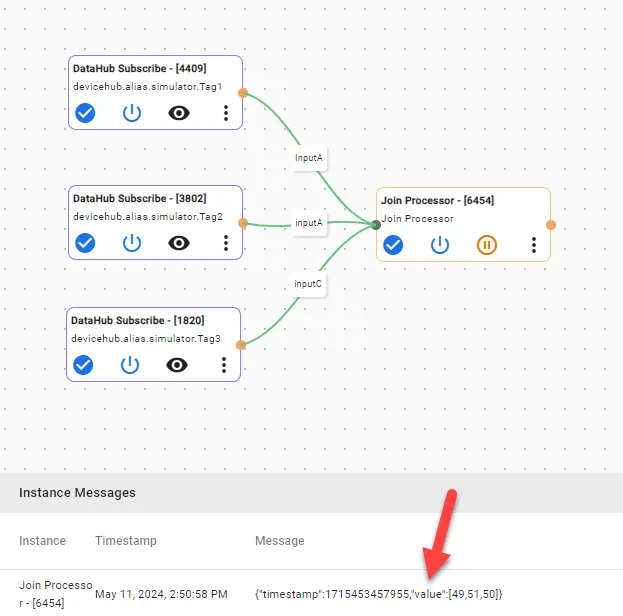
You can use the Join processor to combine the output for two or more input processors. You must define the connector when multiple input processors are connected to a Join Processor.
Understanding Different Join Outputs
You have the following output modes for Join processor by fields:
- Map: Use this option if standard JSON format is needed (e.g., for database output).
- Array: Use this option if all values are needed in an array format.
User Scenario
Review the following scenario for the join processor function. Then, you will simulate PLC data and join outputs using multiple input processors.
In a chemical plant, different PLCs monitor environmental factors like temperature, humidity, gas levels, and pressure in various plant areas. With the Join Processor, you can combine these readings into an array or JSON format for real-time monitoring and trend analysis of the plant environment.
Step 1: Add a Device
Follow the steps to Connect a Device and configure the following parameters:
- Device Type: Simulator
- Driver Name: Generator
- Enable Alias Topics: Select the checkbox.
Step 2: Add Tags
After connecting the device, add the following tags. See Add Tags to learn more. Each tag will be used for simulating the different Join processor outputs mentioned above.
Tag 1: tag1
- Name: Select S - Random value generator
- Value Type: Select int64
- Polling Interval: Enter 5
- Tag Name: Enter tag1
Tag 2: tag2
- Name: Select S - Random value generator
- Value Type: Select float64
- Polling Interval: Enter 5
- Tag Name: Enter tag2
Tag 3: tag3
- Name: Select S - Random value generator
- Value Type: Select string
- Polling Interval: Enter 5
- Tag Name: Enter tag3
Step 3: Create Analytics Flows
You can now create the analytics flows using data from the device and tags you previously created. Follow Step 3a or 3b, depending on whether you want to combine outputs in JSON or Array format.
To create an analytics flow with the Join Processor function:
- Navigate to Analytics.
On the analytics canvas, click Add processor. The Create a processor dialog box displays.
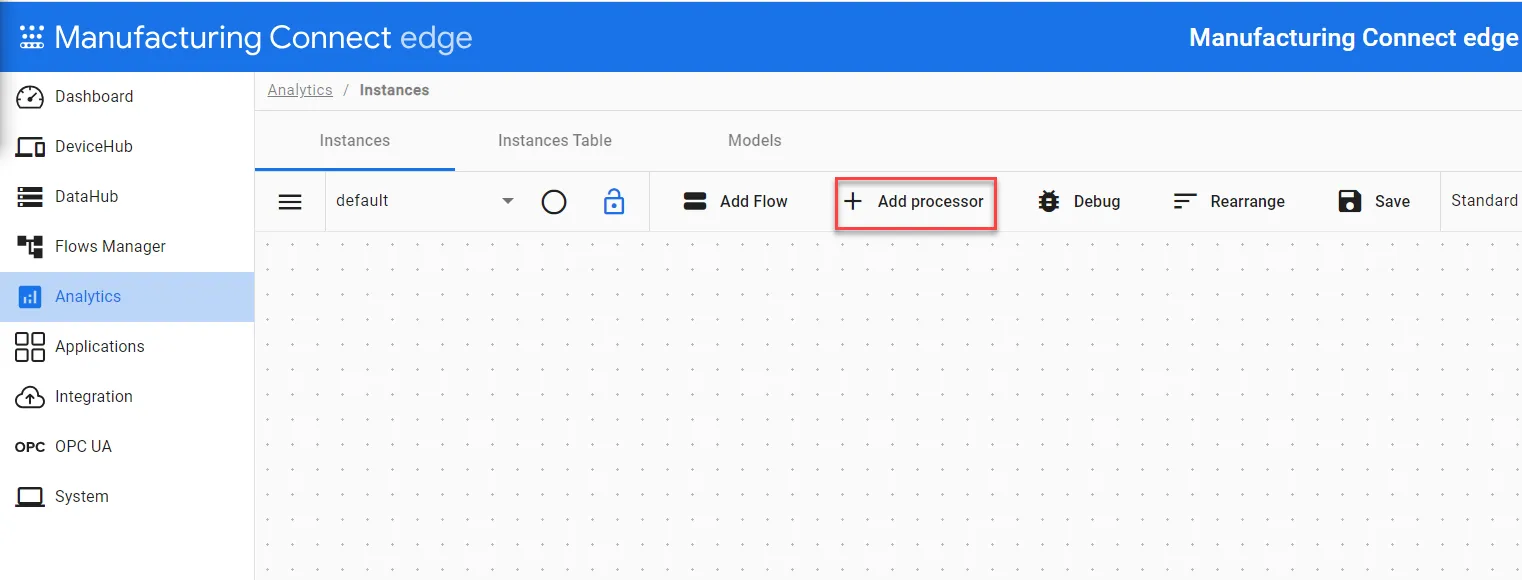 The Add processor option
- Select DataHub Subscribe.
In the Topic field, click the Search icon, select the device you previously created, and then select the alias topic for the tag1.
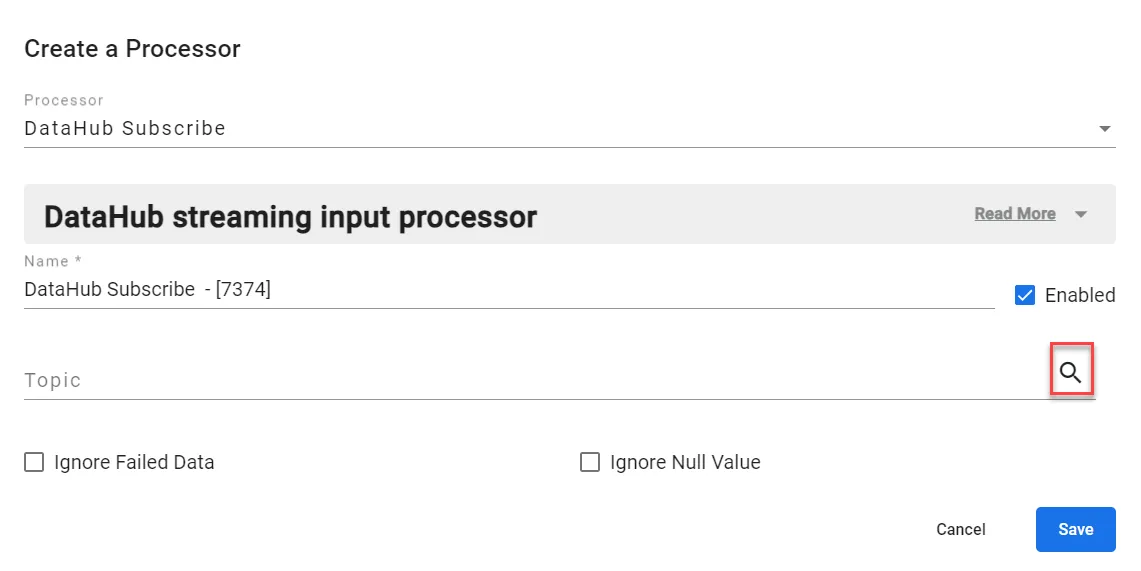 Create a Processor dialog box
- Click Save.
- Repeat steps 2-5 to add another DataHub Subscribe node. Select the alias topic for the tag2 and tag3 respectively.
Step 3a: Configure Join Processor with Output as MAP
- Click Add processor again and select Join Processor. The following information defines this function:
- Output Mode: Select map from the drop-down menu.
- Map Field Prefix: Add a prefix before the output fields when they are combined if needed.
- Input Source: You can use the device or connecting wire definition name. If the device name is chosen, it is required to have the deviceName and tagName fields in the input.
- Field: The field from the JSON String you want to join. Available options are device, tagName, value, etc.
Click Save.
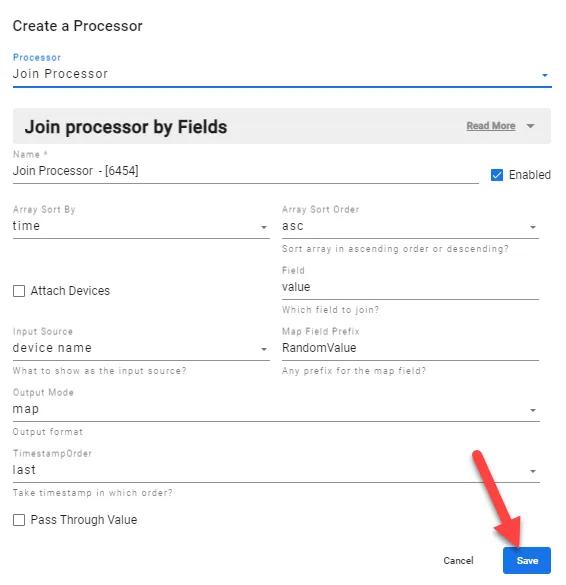 Join Processr dialog box with Map Output
- Connect the DataHub Subscribe processor (tag: tag1) to the Join processor with a wire and enter the definition of inputA for the connection.
- Connect the DataHub Subscribe processor (tag: tag2) to the Join processor with a wire and enter a definition of inputB for the connection.
- Connect the DataHub Subscribe processor (tag: tag3) to the Join processor with a wire and enter a definition of inputC for the connection.
- On the analytics canvas, click Save.
Step 3b: Configure Join Processor with Output as Array
- Click Add processor again and select Join Processor. The following information defines this function:
- Output Mode: Select array from the drop-down menu.
- Map Field Prefix: This field can remain empty.
- Field: The field from the JSON String you want to join. Available options are device, tagName, value, etc.
- Array Sort By: In Array mode, you can arrange field values by tag, definition, id, and time.
- Array Sort Order: In Array mode, you can arrange field values in either Ascending or Descending order.
Click Save.
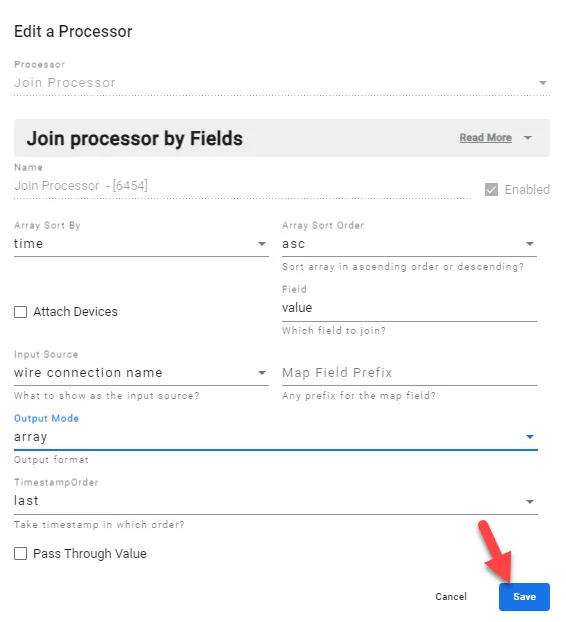 Join Processr dialog box with Array Output
- Connect the DataHub Subscribe processor (tag: tag1) to the Join processor with a wire and enter the definition of inputA for the connection.
- Connect the DataHub Subscribe processor (tag: tag2) to the Join processor with a wire and enter a definition of inputB for the connection.
- Connect the DataHub Subscribe processor (tag: tag3) to the Join processor with a wire and enter a definition of inputC for the connection.
- On the analytics canvas, click Save.
Step 4: View Output of Processor
Click the View icon in the Join processor to view outputs in different modes on the analytics canvas.
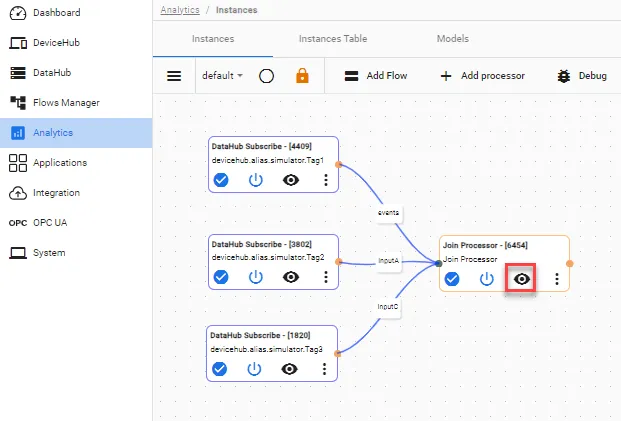
View Map Mode Output
The Join processor returns a JSON string with the joined fields from all the tags defined.
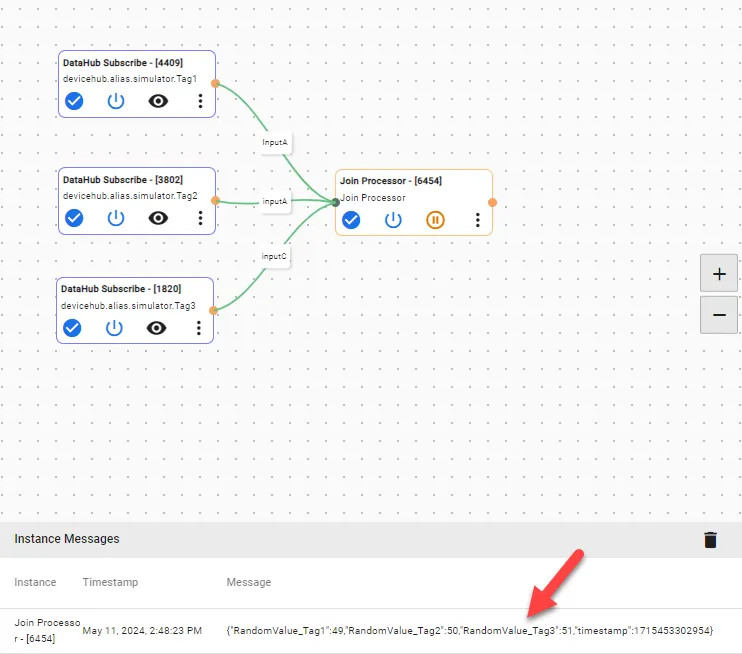
View Array Mode Output
The Join processor returns an Array of the joined field from all the tags defined, sorted by time in ascending order.