Use the Rounding Function
You can use the Rounding processor to round off the collected data to the nearest decimal place.
Understanding Rounding Methods
You have the following rounding options:
- roundNearest: This method returns a rounded value based on the number of decimal digits configured. For instance, if you set two decimal digits and the value is 1.5677, the rounded value will be 1.57.
- roundUp: A method that rounds up the value to the specified number of decimal digits. For example, if you specify two decimal digits and the value is 1.3221, the rounded up value would be 1.33.
- roundDown: A method that rounds down the value to the specified number of decimal digits. For example, if you specify two decimal digits and the value is 1.3221, the rounded value is 1.32.
- roundEven: This method rounds to the nearest even integer in cases of rounding ties (when both integers are equidistant, e.g. 1.5). In any other case, it acts as a round nearest function. If the value is 1.3221 and 1.5, the rounded even value is 1 and 2, respectively, as the nearest even integer.
User Scenario
Review the following scenario for rounding off the tag values. Then, you will simulate data from a PLC and make the following rounding conversions.
Some of your manufacturing sites with multiple PLCs collect data with high precision. You can round off the collected data for easier aggregation, computation, visualization, comprehension, and communication.
Step 1: Add a Device
Follow the steps to Connect a Device and configure the following parameters:
- Device Type: Simulator
- Driver Name: Generator
- Enable Alias Topics: Select the checkbox.
Step 2: Add Tags
After connecting the device, add the following tags. See Add Tags to learn more. Each tag will represent one of the round function options noted above.
Tag 1: RoundNearest
- Name: Select S - Random value generator
- Value Type: Select float64
- Polling Interval: Enter 5
- Tag Name: Enter RoundNearest
- Min_value: Enter 1.523
- Max_value: Enter 1.523
Tag 2: RoundUp
- Name: Select S - Random value generator
- Value Type: Select float64
- Polling Interval: Enter 5
- Tag Name: Enter RoundUp
- Min_value: Enter 1.523
- Max_value: Enter 1.523
Tag 3: RoundDown
- Name: Select S - Random value generator
- Value Type: Select float64
- Polling Interval: Enter 5
- Tag Name: Enter RoundDown
- Min_value: Enter 1.523
- Max_value: Enter 1.523
Tag 4: RoundEven
- Name: Select S - Random value generator
- Value Type: Select float64
- Polling Interval: Enter 5
- Tag Name: Enter RoundEven
- Min_value: Enter 1.523
- Max_value: Enter 1.523
Step 3: Create Analytics Flows
You can now create the analytics flows using data from the device and tags you previously created.
To create an analytics flow with the Rounding function:
- Navigate to Analytics.
On the analytics canvas, click Add processor. The Create a processor dialog displays.
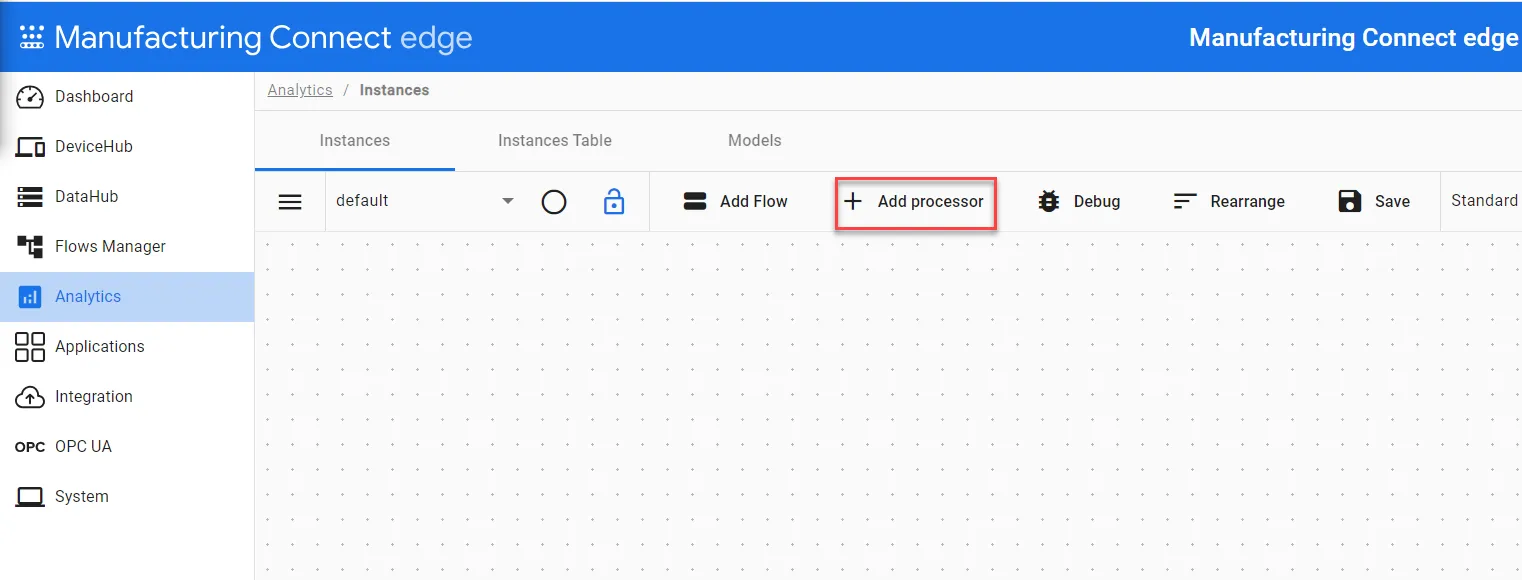 The Add processor option
- Select DataHub Subscribe.
In the Topic field, click the Search icon, select the device you previously created, and then select the alias topic for the RoundNearest tag.
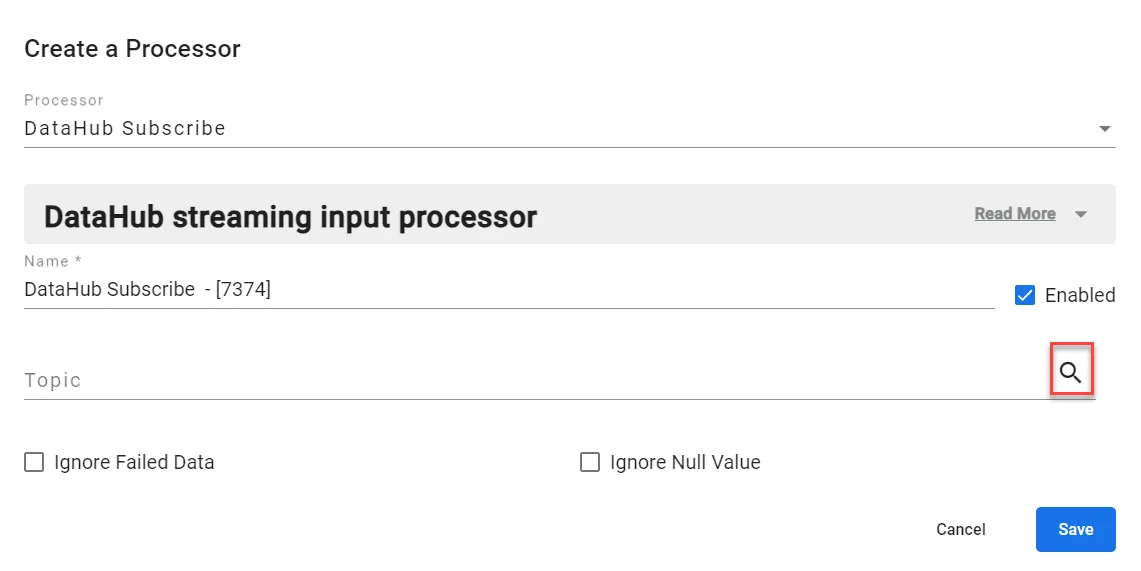 Create a Processor dialog box
- Click Save.
- Click Add processor again and select Rounding. The following information describes this function:
- For Digits, enter the number of digits for which you would like to round.
- Entering 0 ignores all floating point values and gives the integer value.
- For Method, select roundNearest.
Click Save.
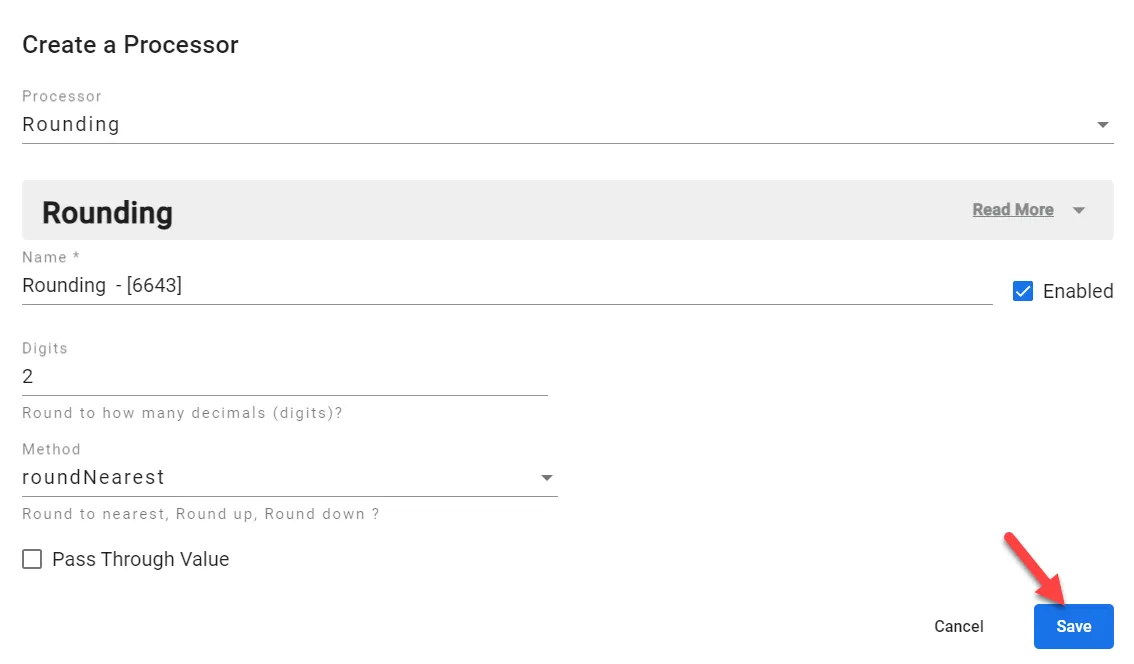 Rounding Pocessor dialog box
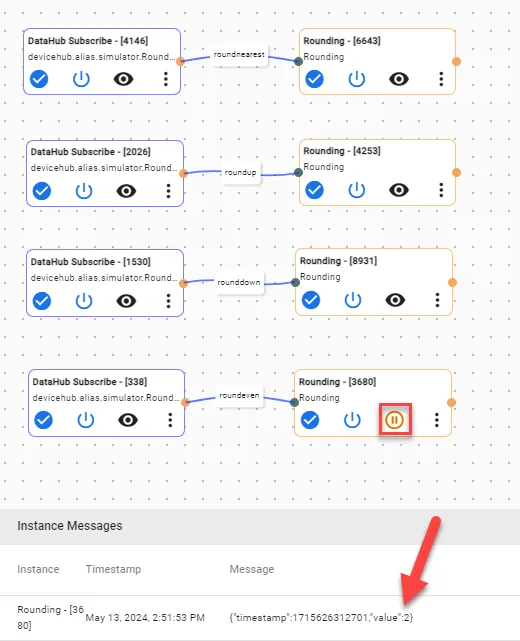
Connect the two processors, select Events, and enter a definition of roundnearest for the connection.
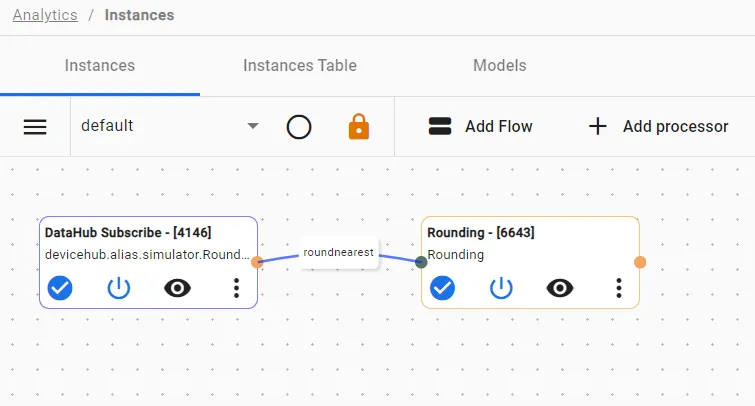 Processor flow for roundnearest tag
- Repeat steps 2-8 for the round-up tag and configure the following:
- In the DataHub Subscribe processor, select the alias topic for the RoundUp tag.
- In the method dropdown, select roundUp.
- When you connect the two processors, select Events and enter a definition of roundup for the connection.
- Repeat steps 2-8 for the round-down tag and configure the following:
- In the DataHub Subscribe processor, select the alias topic for the RoundDown tag.
- In the method dropdown, select roundDown.
- When you connect the two processors, select Events and enter a definition of rounddown for the connection.
- Repeat steps 2-8 for the round-even tag and configure the following:
- In the DataHub Subscribe processor, select the alias topic for the RoundEven tag.
- In the method dropdown, select roundEven.
- When you connect the two processors, select Events and enter a definition of roundeven for the connection.
- On the analytics canvas, click Save.
The configured analytics flows should look like the following.
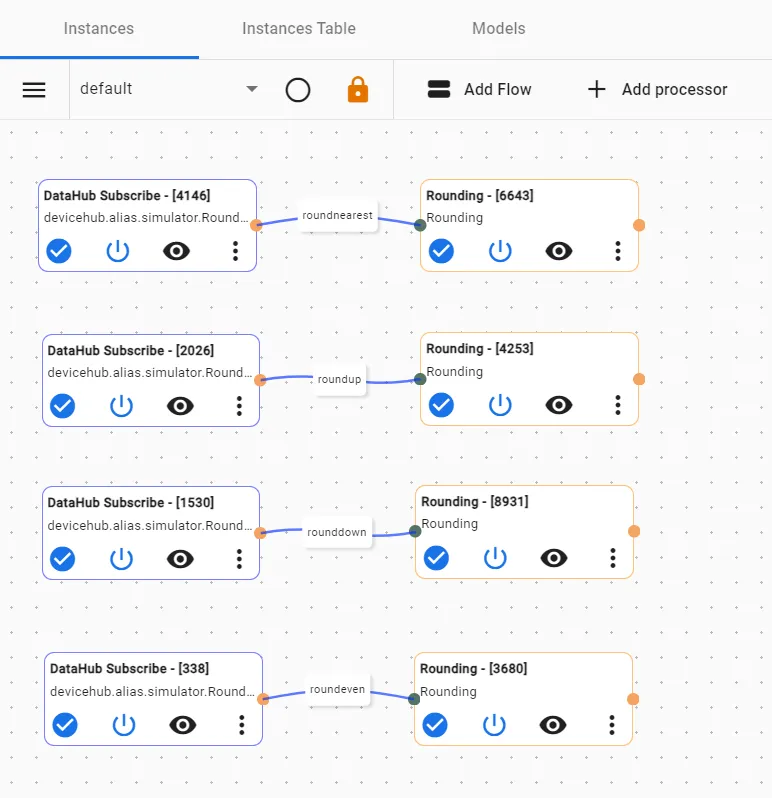
Step 4: View Rounded Data
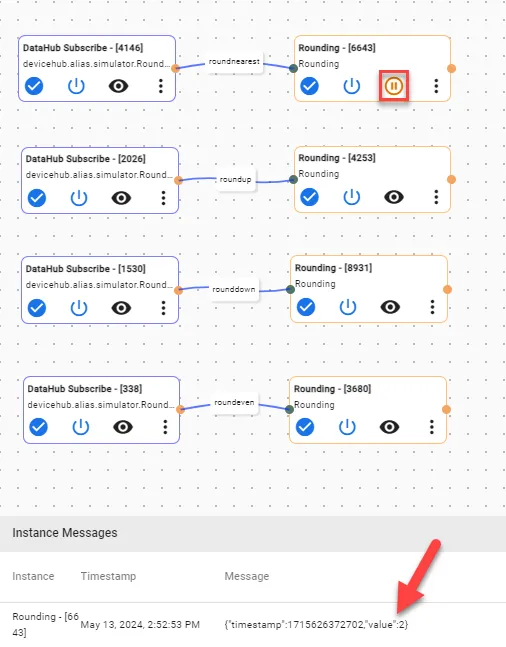
You can view data on the analytics canvas by clicking the View icon in each Rounding processor.
Round Data for RoundNearest Tag
The roundNearest method returns 2 as the answer when 1.523 is used as an input value.
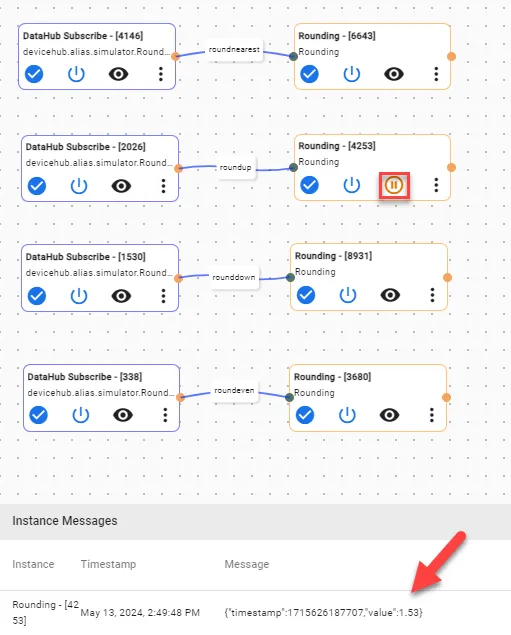
Round Data for RoundUp Tag
The roundUp method returns 1.53 as the answer when 1.523 is used as an input value.
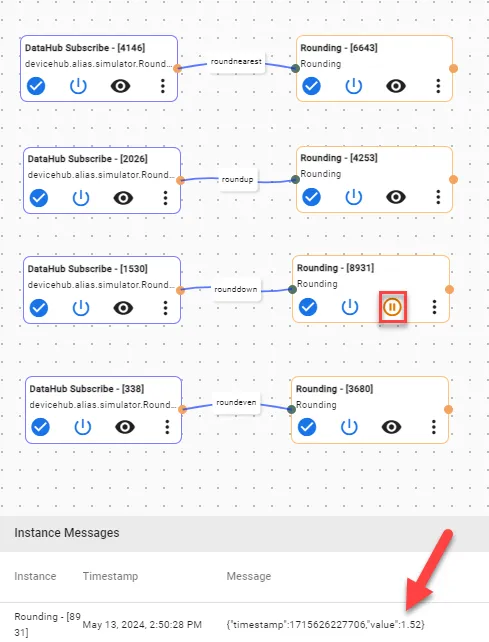
Round Data for RoundDown Tag
The roundDown method returns 1.52 as the answer when 1.523 is used as an input value.
Round Data for RoundEven Tag
The roundEven method returns 2 as the answer when 1.523 is used as an input value.