Synchronization
Note: The Synchronization feature is available for Manufacturing Connect 2.11.0 and later.
You can remotely synchronize Marketplace Catalogs located on different Manufacturing Connect instances. To do this, you will execute the following key steps:
- Create the primary marketplace catalog (and then add changes as desired) within a first Manufacturing Connect.
- Create a secondary marketplace catalog within a second Manufacturing Connect.
- Connect (via bootstrap) the secondary marketplace catalog to the primary marketplace catalog.
Once connected, you can then synchronize the secondary marketplace catalog to be identical to the primary marketplace catalog.
If desired, a Manufacturing Connect can contain both the primary marketplace catalog and the secondary marketplace catalog.
Note: After a primary-secondary marketplace catalog synchronization, any further changes to the primary marketplace catalog requires additional primary-secondary syncs. Secondary marketplace catalogs will not automatically receive primary marketplace catalog changes.
Step 1: Set Up Primary Marketplace Catalog
You will create the primary marketplace catalog in the Manufacturing Connect you want to store this catalog. This primary marketplace catalog will be the marketplace catalog that other secondary marketplace catalog(s) will synchronize and become identical to.
To setup the primary marketplace catalog:
From Catalogs pane, create the primary marketplace catalog. See Create Catalog for details.
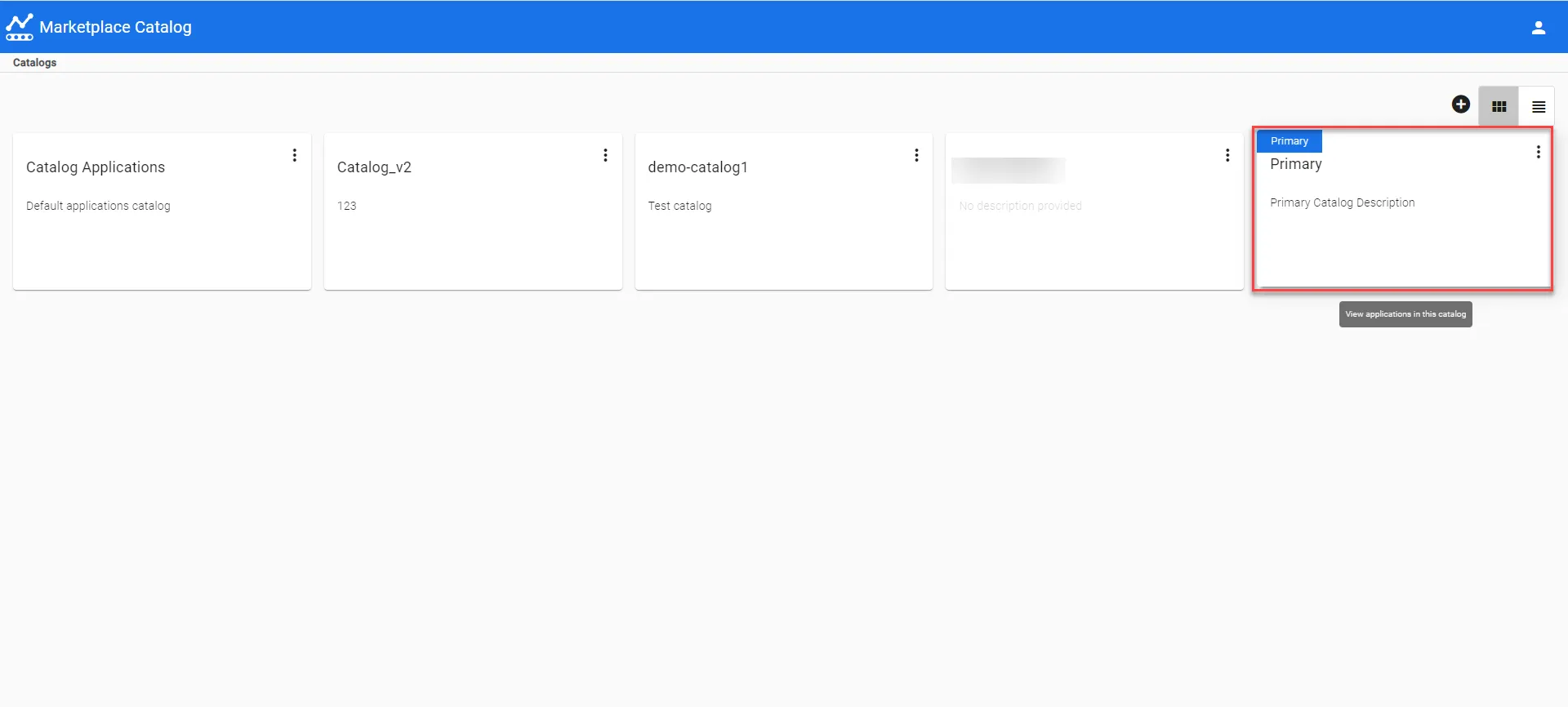 Marketplace Catalog : Primary Marketplace Catalog
- Click on the primary marketplace catalog you've just created.
- (Optional) Inside the primary marketplace catalog, add the applications (and respective application releases) and registries that will be later synchronized to secondary catalogs. See Step 1-4 of Add a Draft Application Release and Registry Management.
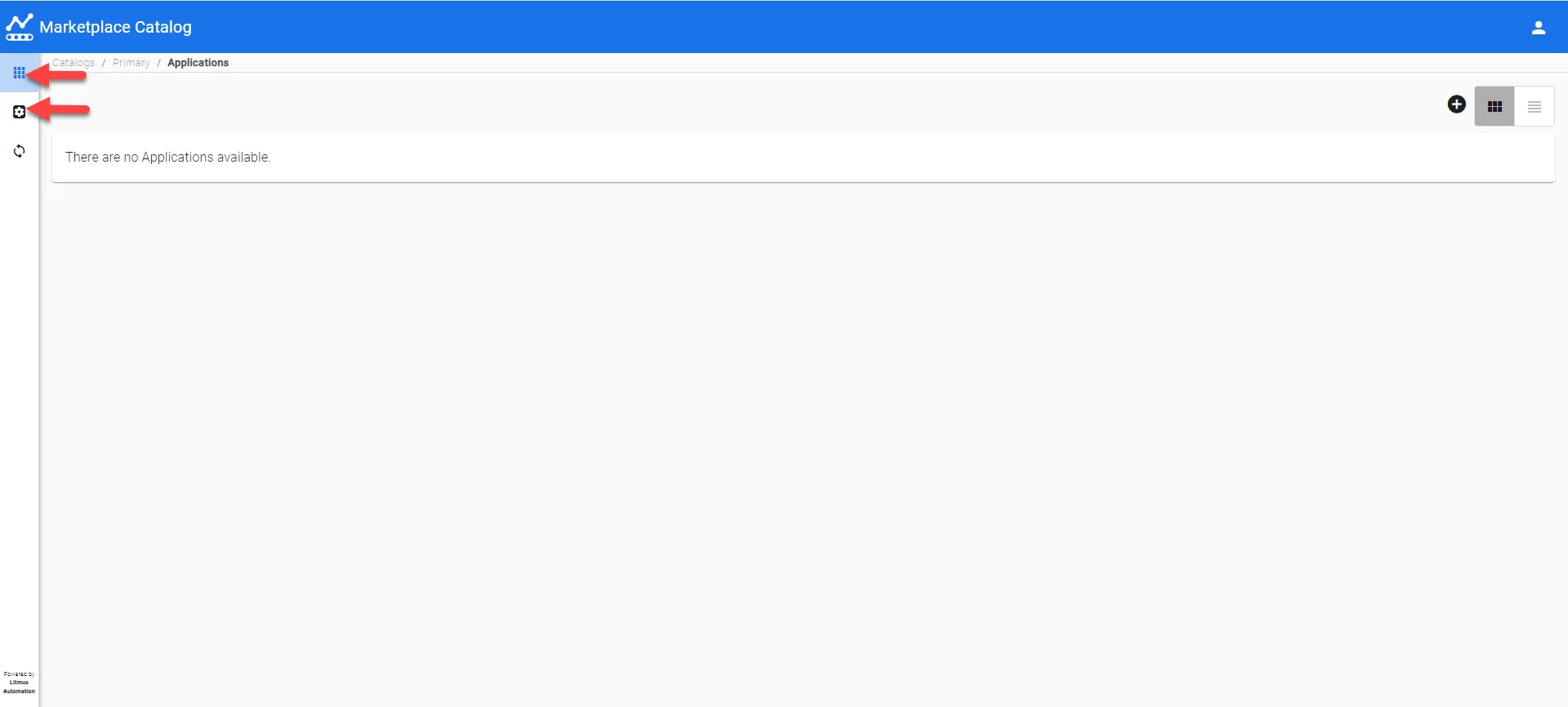
Step 2: Download Primary Marketplace Catalog Bootstrap File
After you have created the primary marketplace catalog and added relevant applications (and relevant releases) and registries, you will next download the primary marketplace catalog bootstrap file.
To download the bootstrap credential file:
From the primary marketplace catalog's Applications pane, click Synchronization. The Synchronization: Primary Catalog pane appears.
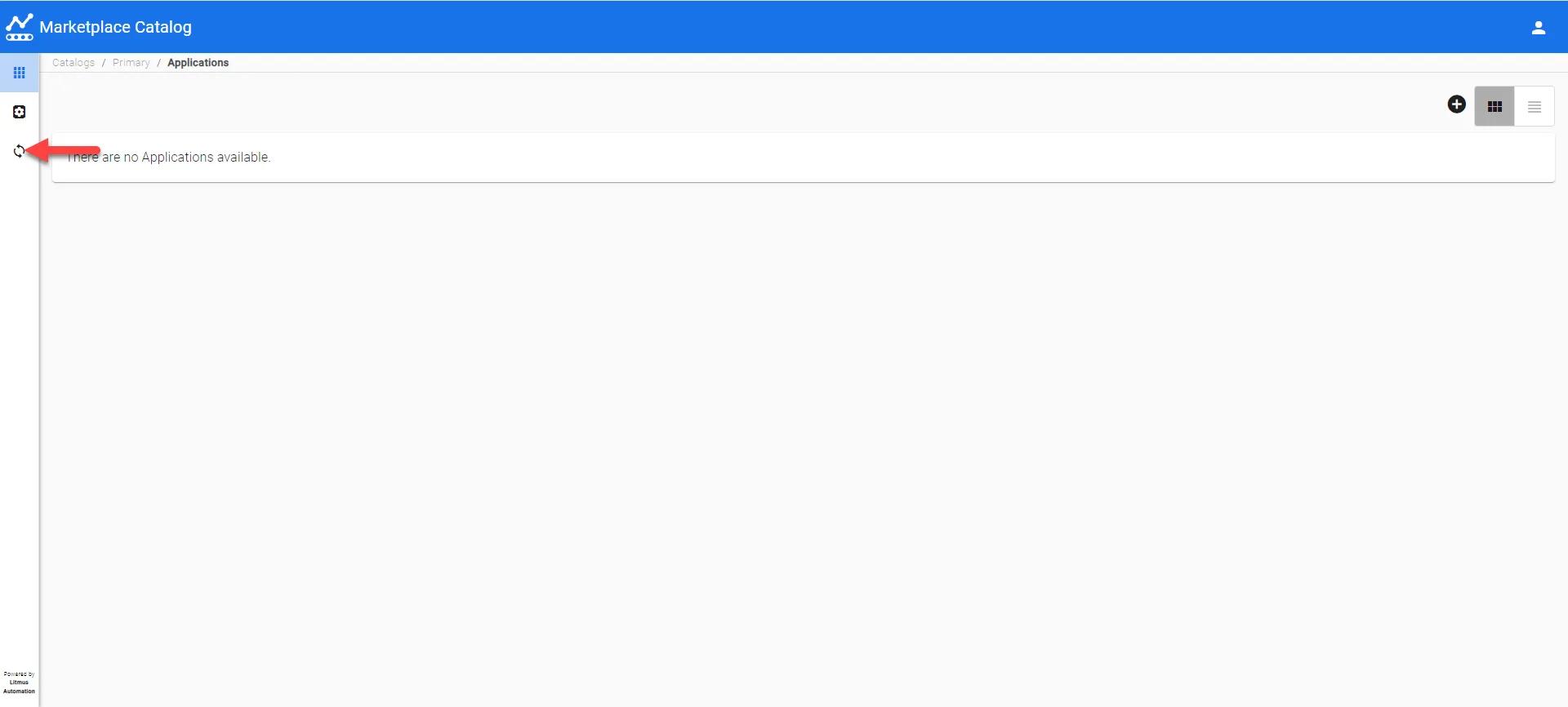 Primary Marketplace Catalog: Synchronization
From Expiration within: customize the desired duration for the bootstrap credential file.
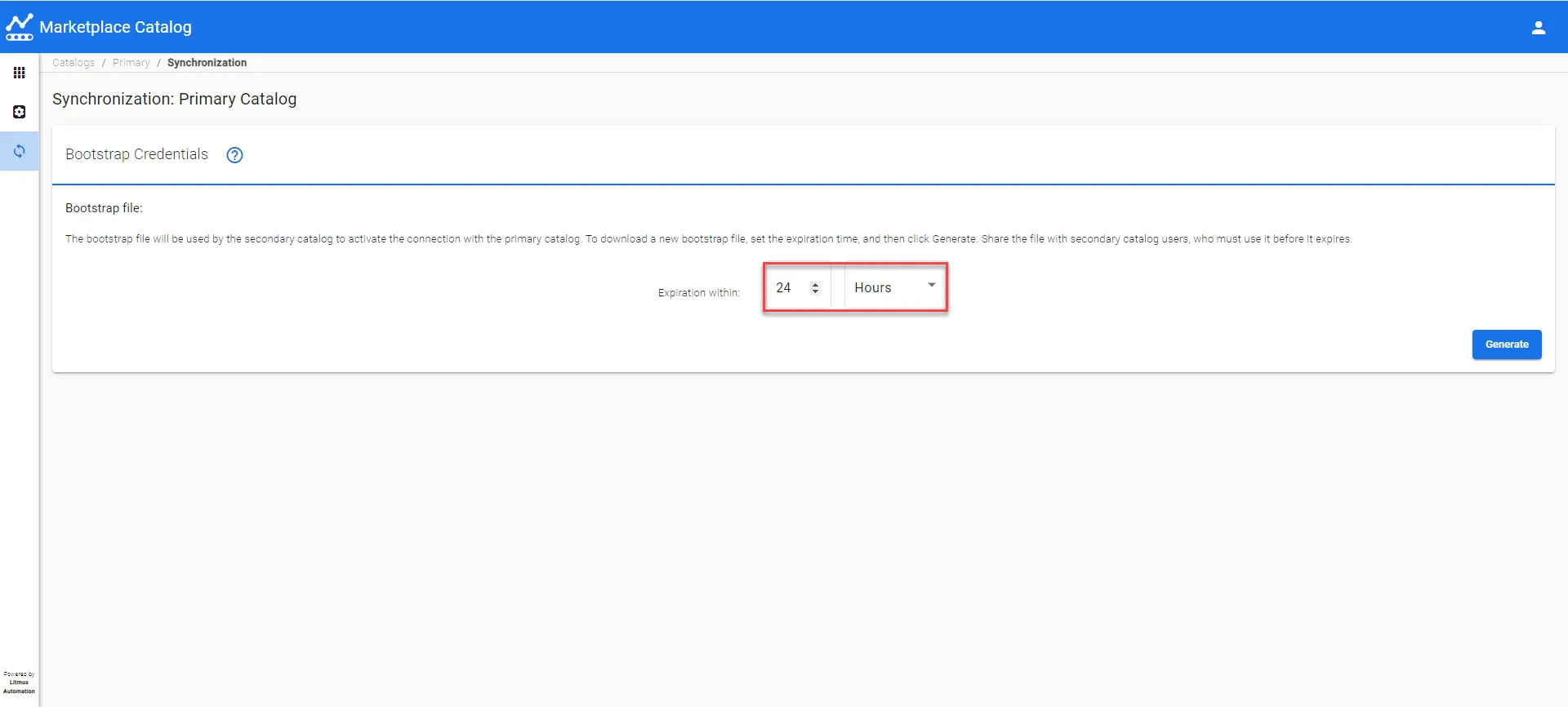 Primary Marketplace Catalog: Synchronization: Customize Expiration Within
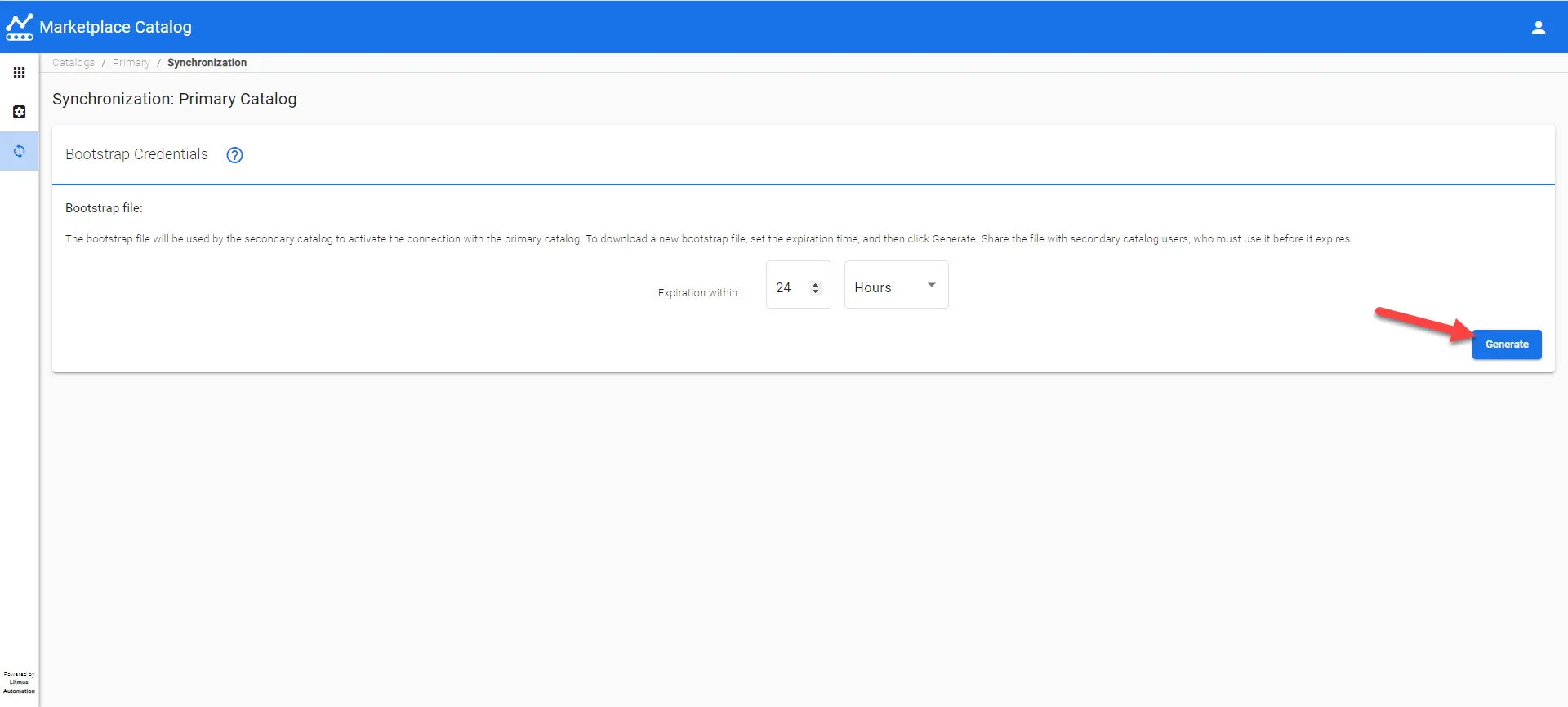
- Click Generate. A .bootstrap file will be downloaded to your local computer.
Step 3: Create a Secondary Marketplace Catalog
After you have downloaded the .bootstrap file, you will next upload the bootstrap file from the previous step to at least one secondary marketplace catalog. You will do this in a different Manufacturing Connect from the previous step.
To upload the bootstrap credential file to a secondary marketplace catalog:
From a different Manufacturing Connect's Catalogs pane, create a secondary marketplace catalog. See Create Catalog for details.
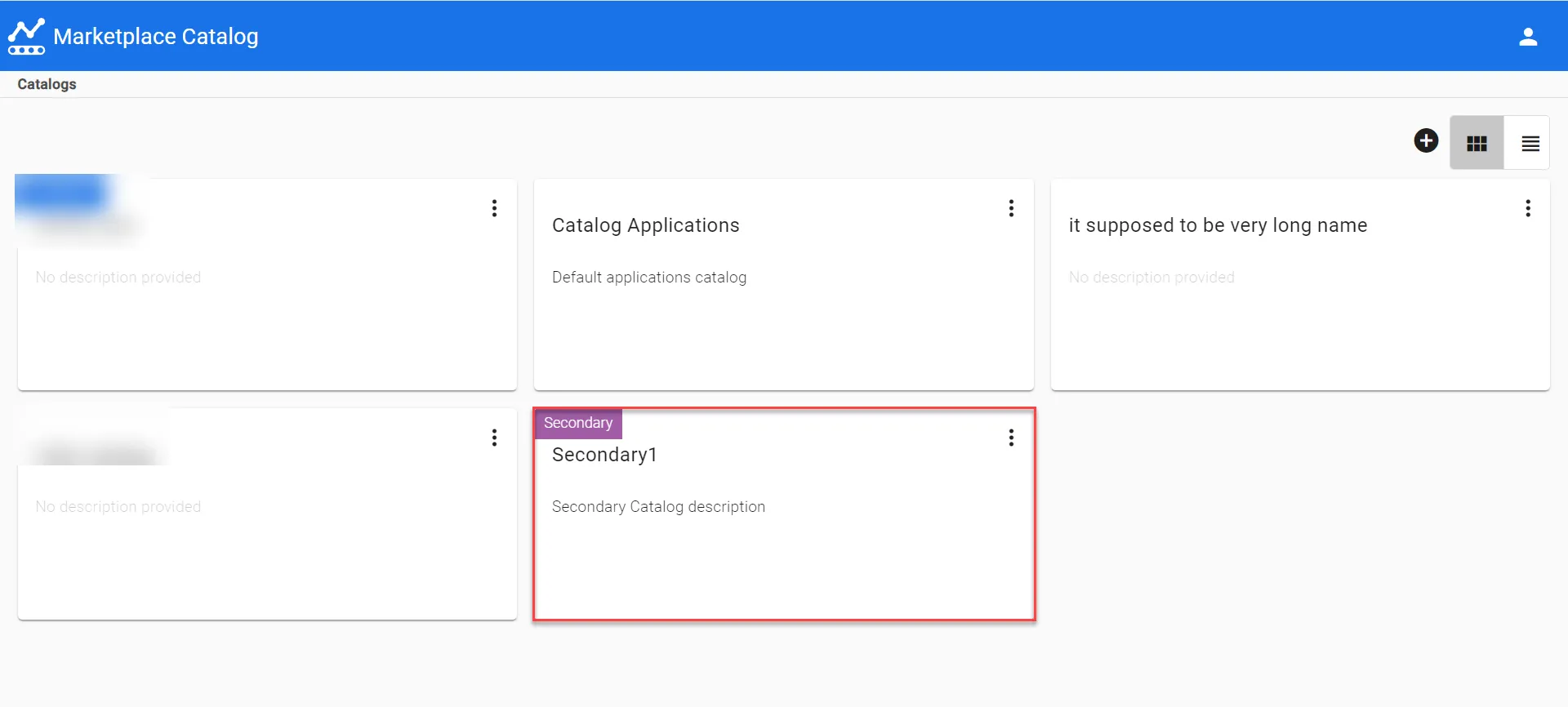 Marketplace Catalog : Secondary Marketplace Catalog
From the secondary marketplace catalog's Applications pane, click Synchronization. The Synchronization: Secondary Catalog pane appears.
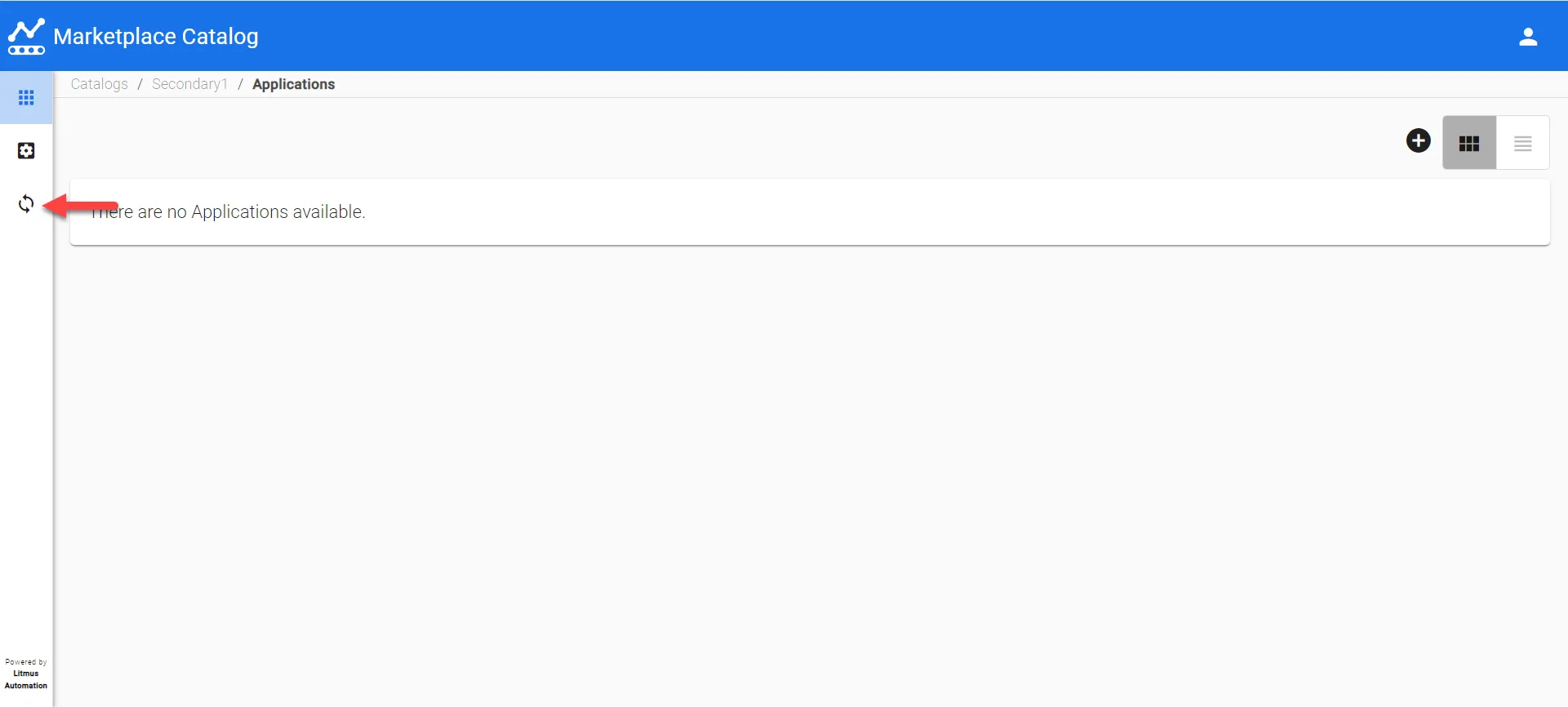 Secondary Marketplace Catalog: Synchronization
Click Upload. Navigate to the .bootstrap file you downloaded earlier from the previous step and select it.
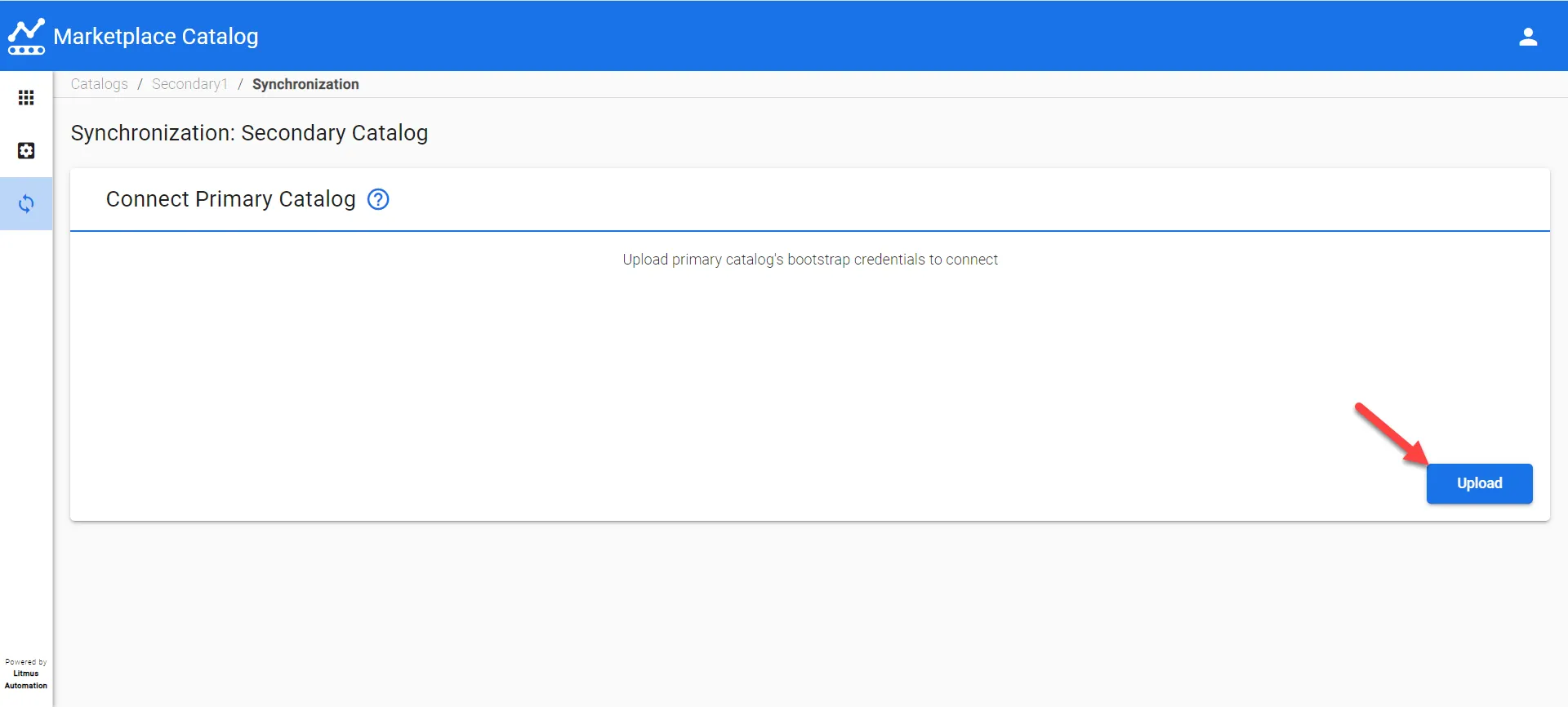 Secondary Marketplace Catalog: Synchronization: Upload
Click Yes.
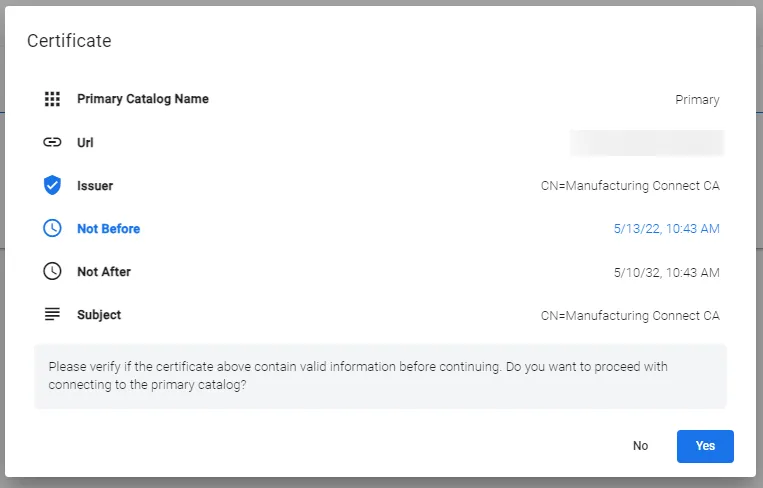 Confirm Certificate
- If successful, the status of the upload process will display approve. The primary marketplace catalog name will also be displayed.
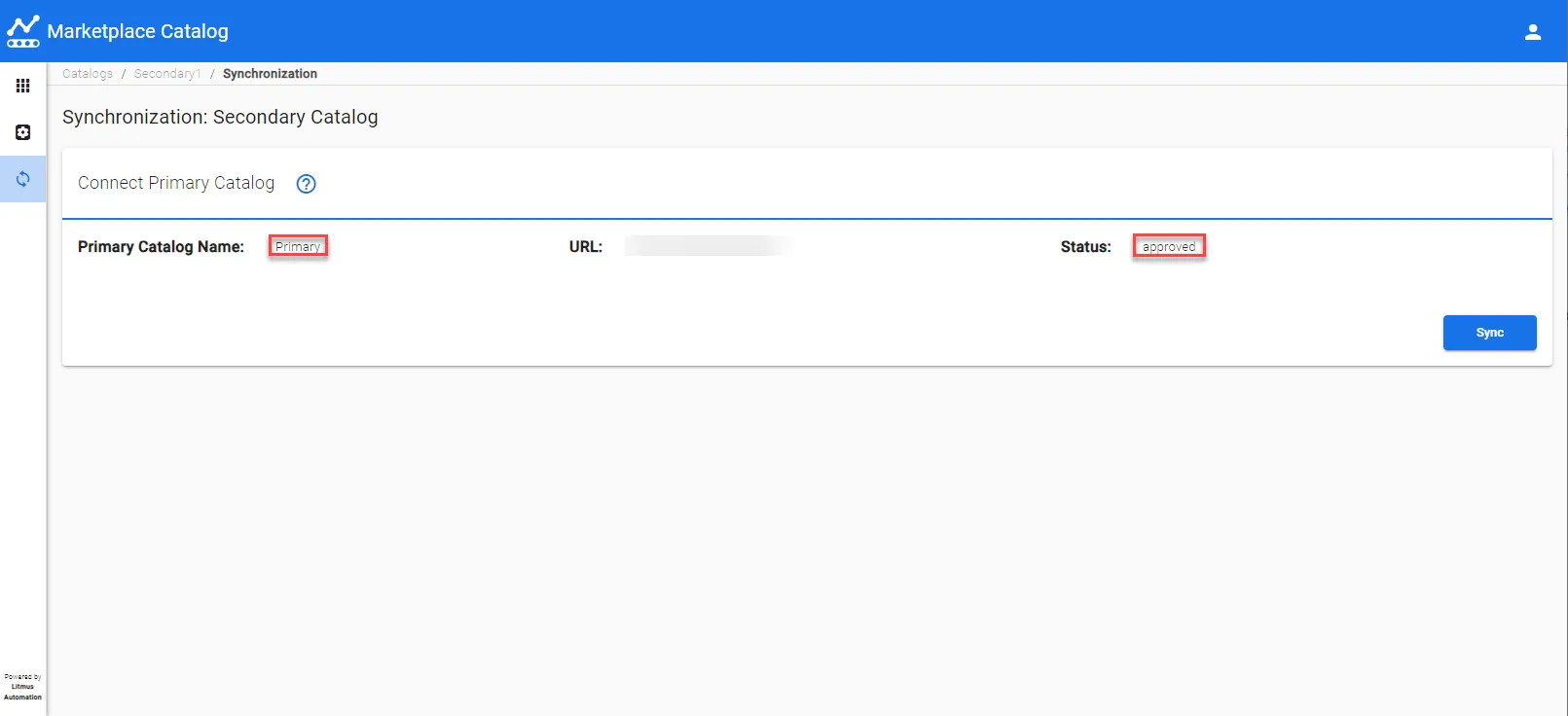
Step 4: Synchronize Secondary Marketplace Catalog to Primary Marketplace Catalog
After you have uploaded the primary marketplace catalog's .bootstrap file to a secondary marketplace catalog, you can then synchronize the secondary marketplace catalog to become identical to the primary marketplace catalog's application (and their application release) and registries.
To synchronize to a secondary marketplace catalog to be identical to the primary marketplace catalog:
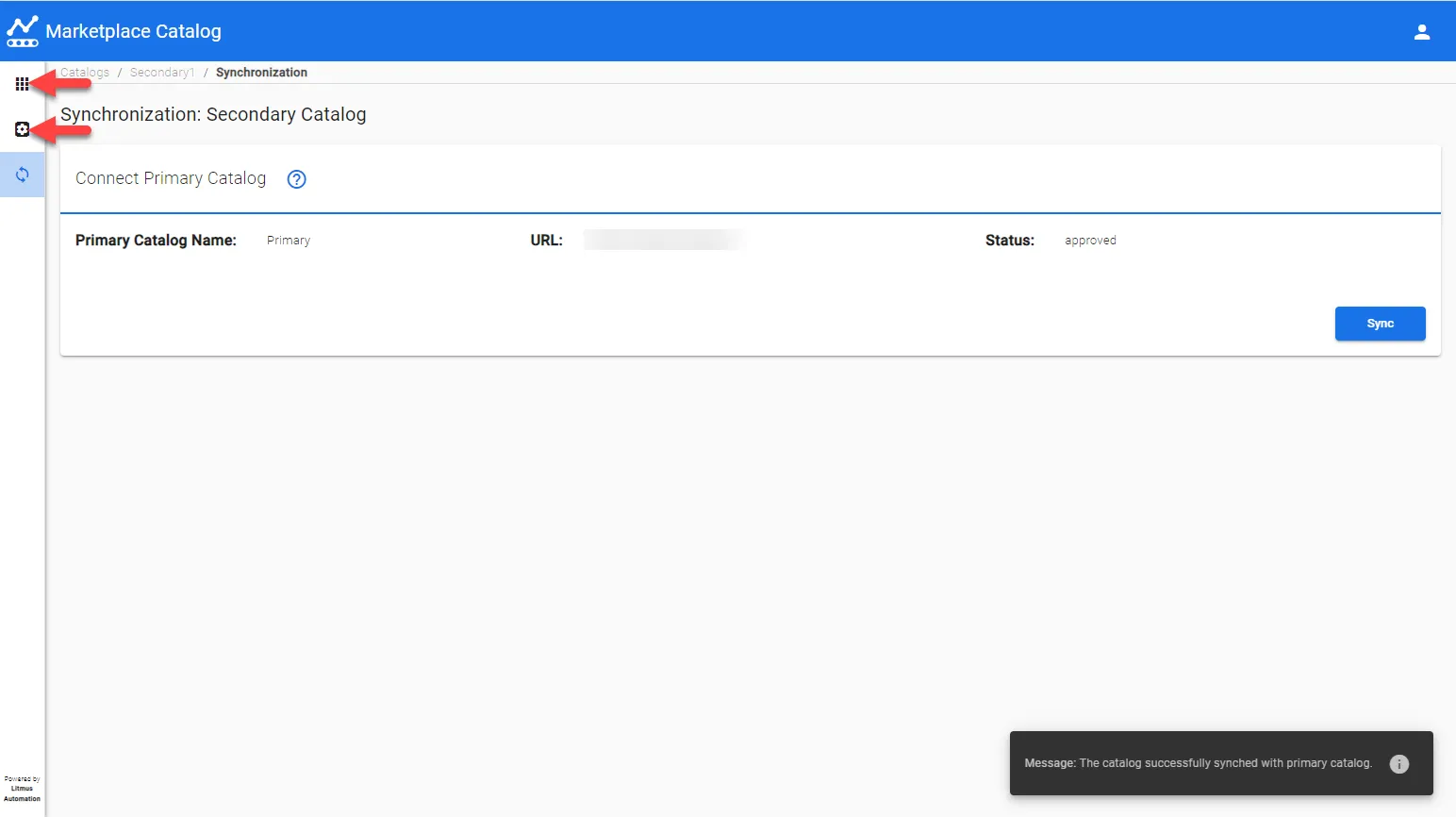
From a secondary catalog's Synchronization: Secondary Catalog pane, click Sync. If the Sync is successful, a success message will be displayed.
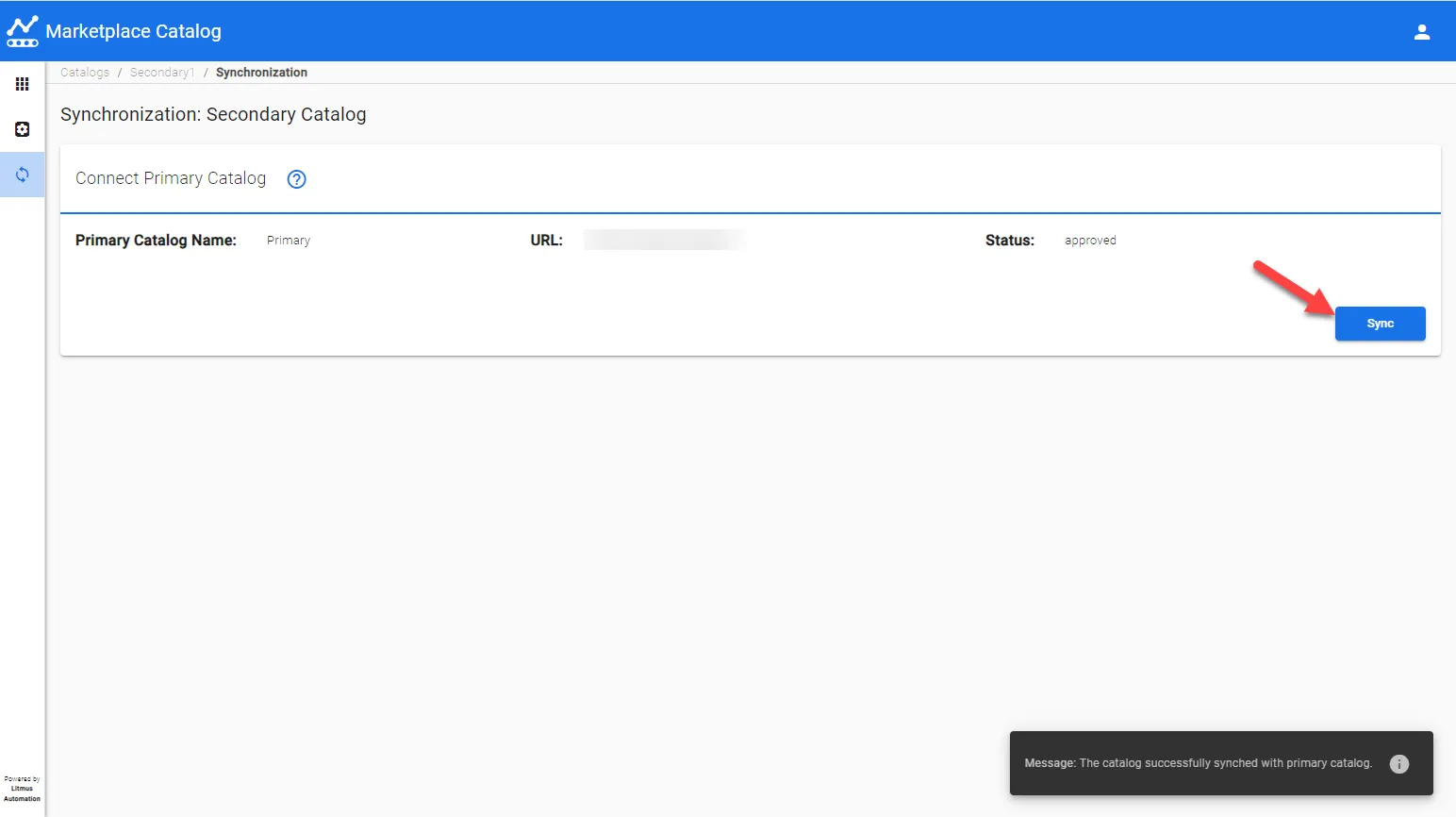 Secondary Marketplace Catalog: Synchronization: Sync
- After a successful sync, click Applications and Registry Management to verify the successful sync. The secondary catalog will contain the same applications (and application releases) and registries as the primary catalog.