User Profile Administration
You can manage your profile using the Keycloak profile application.
Before you can manage your profile, you must log in to Manufacturing Connect with credential-based authentication.
The User Profile is available as an option on the Username icon, which is located at the top of the Manufacturing Connect window.
Access User Profile
To open your user profile:
- Log in to Manufacturing Connect.
From the top of the window, click your username, and then select Profile.
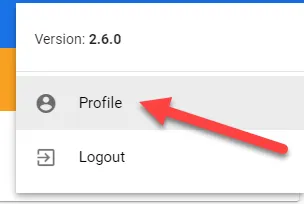 Profile
The Keycloak profile application opens.
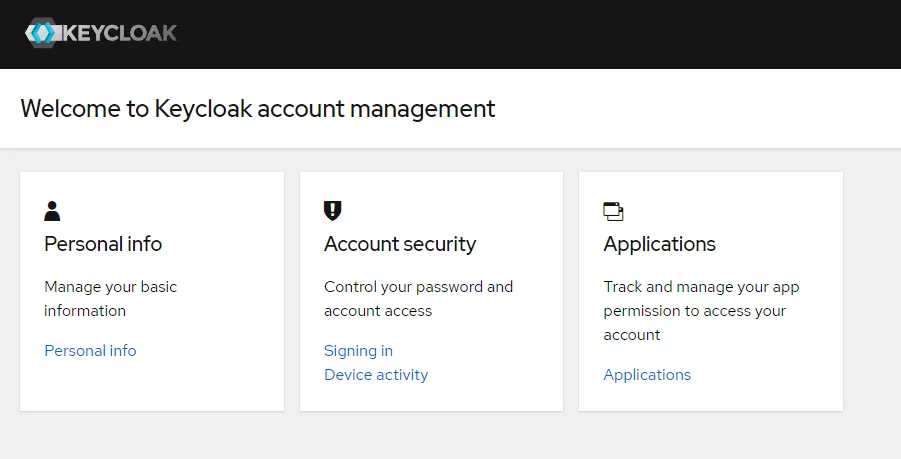
See Access to Manufacturing Connect to access the Keycloak application differently.
Manage Personal Info
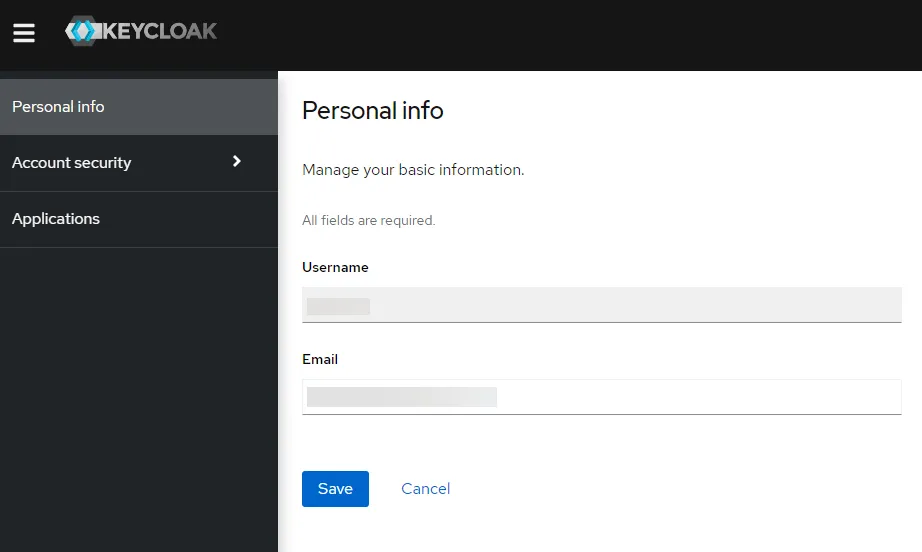
You can manage your username and email by clicking Personal info from the Keycloak landing page.
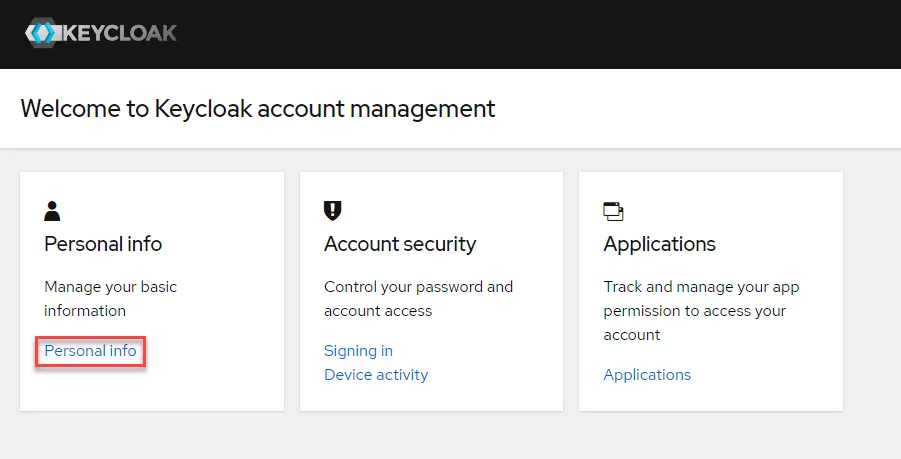
Update your username and email as needed and click Save.
Manage Account Password
You can manage the account password needed to log in to Manufacturing Connect through the Keycloak application.
Notes:
- After you change your user account password, you are logged out and you must log in again using your new password.
- If two-factor authentication is enabled, you must provide the six-digit code from the authentication application on your phone during log in.
To manage your account password:
From the Keycloak landing page, click Signing in.
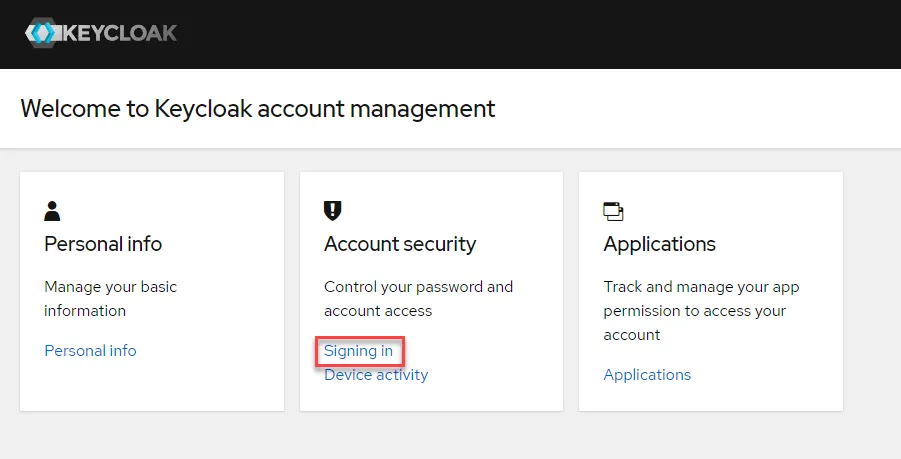 Signing in link
From the Signing in page, click Update. The Manufacturing Connect login screen displays.
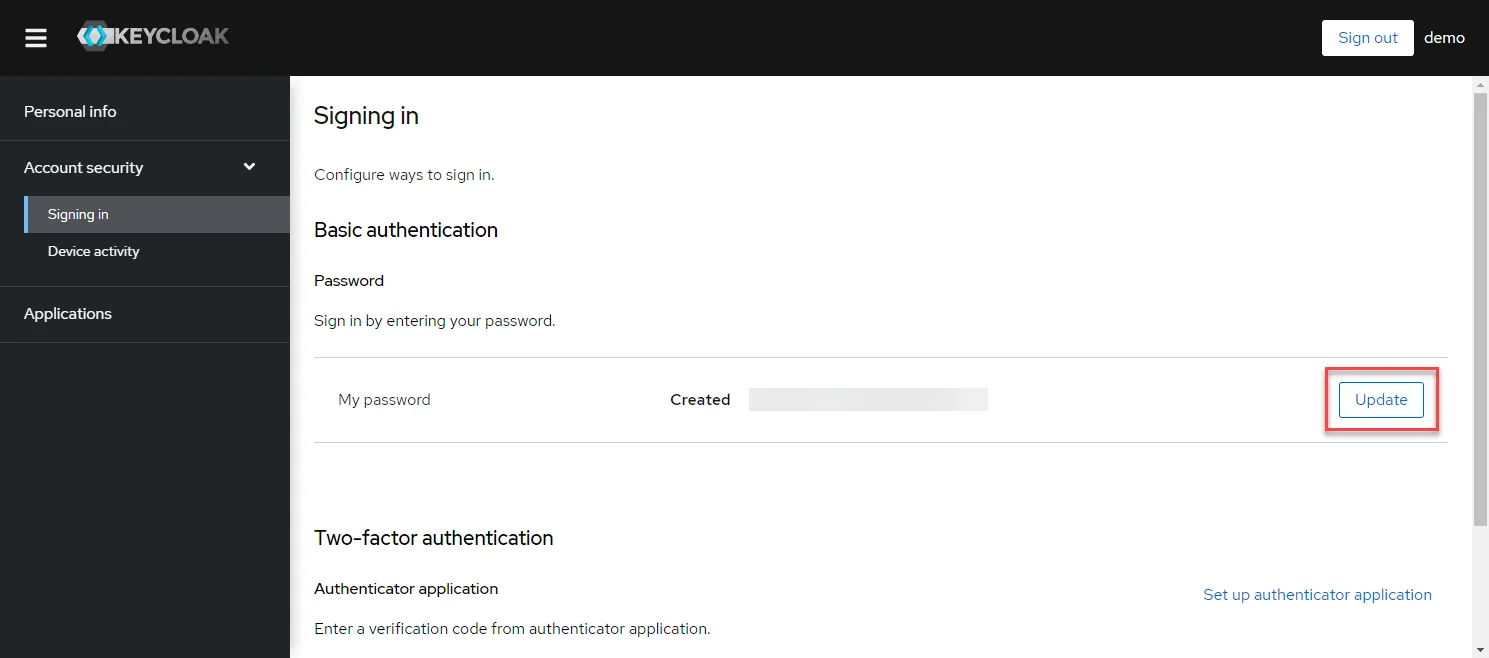 Update password button
- Log in to Manufacturing Connect again with your current credentials.
- Enter the new password twice and click Submit.
Set up Keycloak Two-Factor Authentication
You have the option of setting up two-factor authentication through Keycloak. For additional security, you can configure two-factor authentication (TFA) with a free authenticator application like Google Authentication.
Two-factor authentication exceeds standard security practices by requiring more than a username and password for login access. The authenticator software generates a token that expires within 60 seconds. This token provides the additional layer of authentication required for login.
Before You Begin
You must modify your user account and optionally change your user account password using the Keycloak profile application.
To configure two-factor authentication:
From the Keycloak landing page, click Signing in.
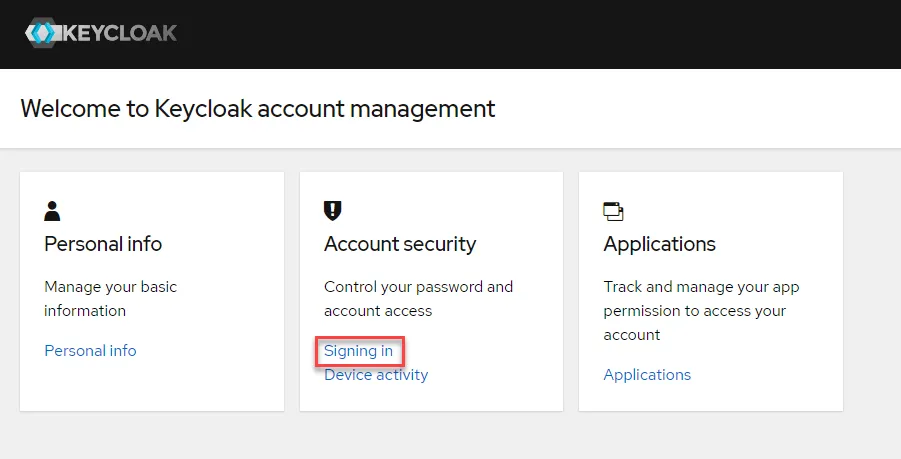 Signing in link
From the Signing in page, click Set up authenticator application.
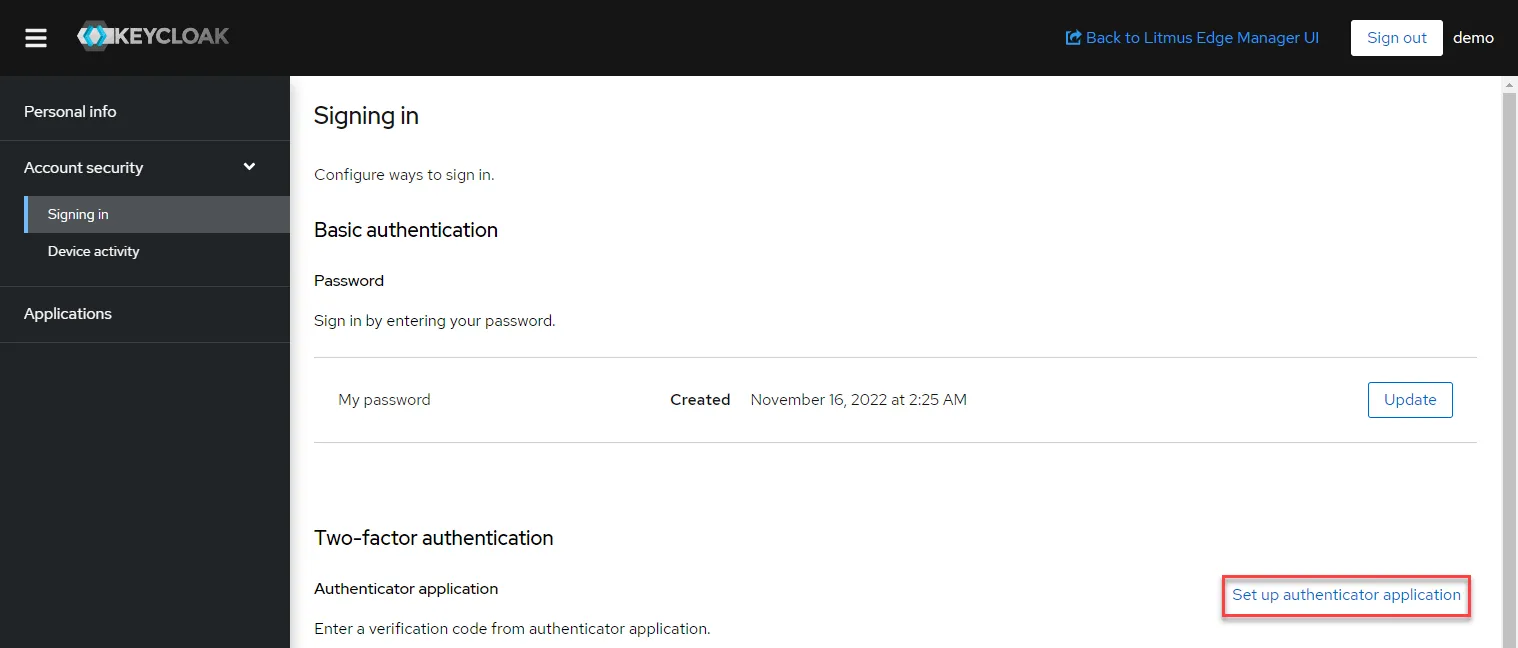 Set up authentication link
- Follow the prompts to set up the authenticator application.
Once you configure the authenticator, you will see a confirmation message.
Note:
- Once you set up two-factor authentication, you must use the authenticator application to access your account after entering your username and password.
- After you enter the username and password, the login directs you to a screen to enter the 6-digit one-time code generated by the application on your smart phone.
View Device Activity
To view device activity for Manufacturing Connect, click Device activity from the Keycloak landing page.
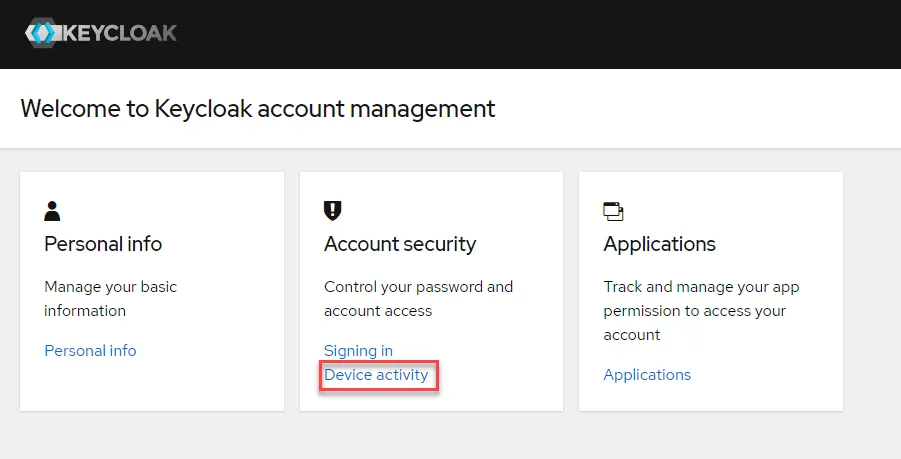
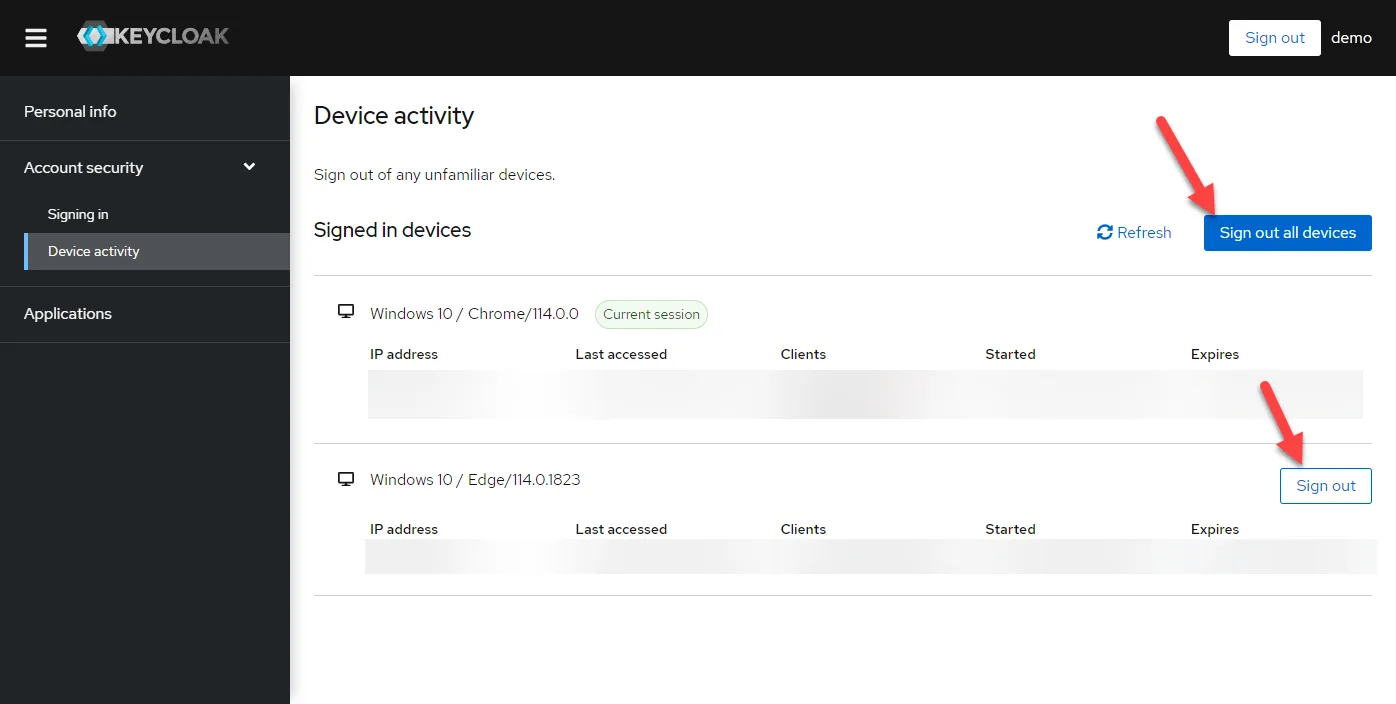
You have the option of signing out specific signed-in devices or logging out of all devices.
View Application Permissions
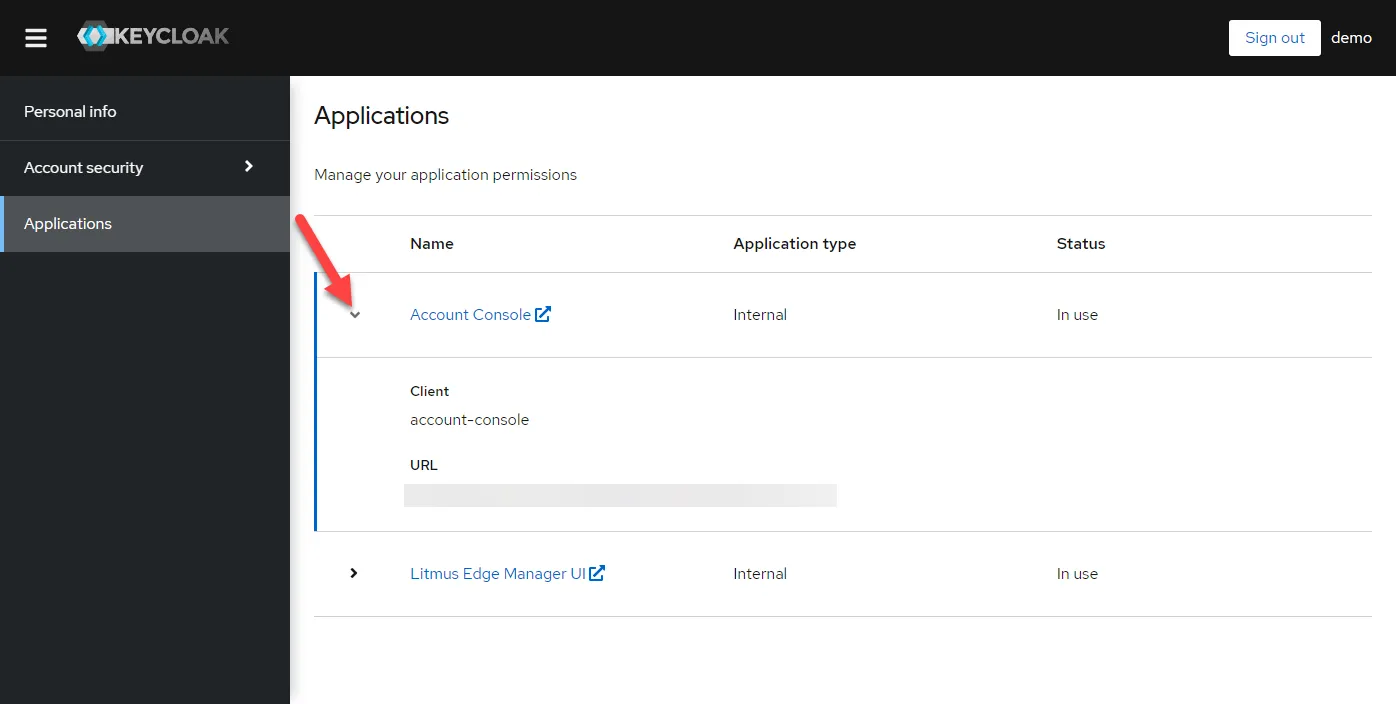
You can view application permissions by click Applications.
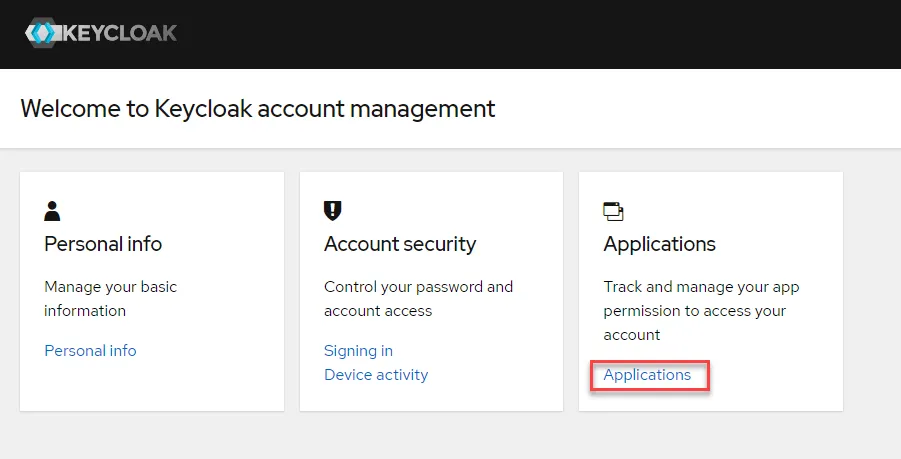
Click the arrow for an application to view more information.