Add a Tag
3 min
You can add tags to connected devices by navigating to DeviceHub > Tags. To learn more about the list of registers for specific devices, visit the Industrial Systems Connection Guide.
Before You Begin
Before creating tags, make sure you have connected a device. Refer to Connect a Device.
Important
Refer to the following information on Free Tags and OPC UA Drivers:
- Certain device drivers do not have a list of register names in the Add Tag form. These are referred to as Free Tags.
- You must enter case-sensitive register names exactly how they are defined in the device.
- Devices do not display a Connected status until a tag with a correct register name is created. See DeviceHub Troubleshooting for more information.
- For OPC UA, map the OPC server tags to the client. Enter the Register Name using this format where the semicolon is required: ns=1;s=tagname . For example: ns=2;s=Channel1.Device1.Tag1.
Add an Individual Tag
You can add a Tag for a single device register or upload tag details with a comma-delimited CSV file. See the Add Multiple Tags section for more information about loading comma-delimited values.
To add a tag for a single register:
- Navigate to DeviceHub > Tags.
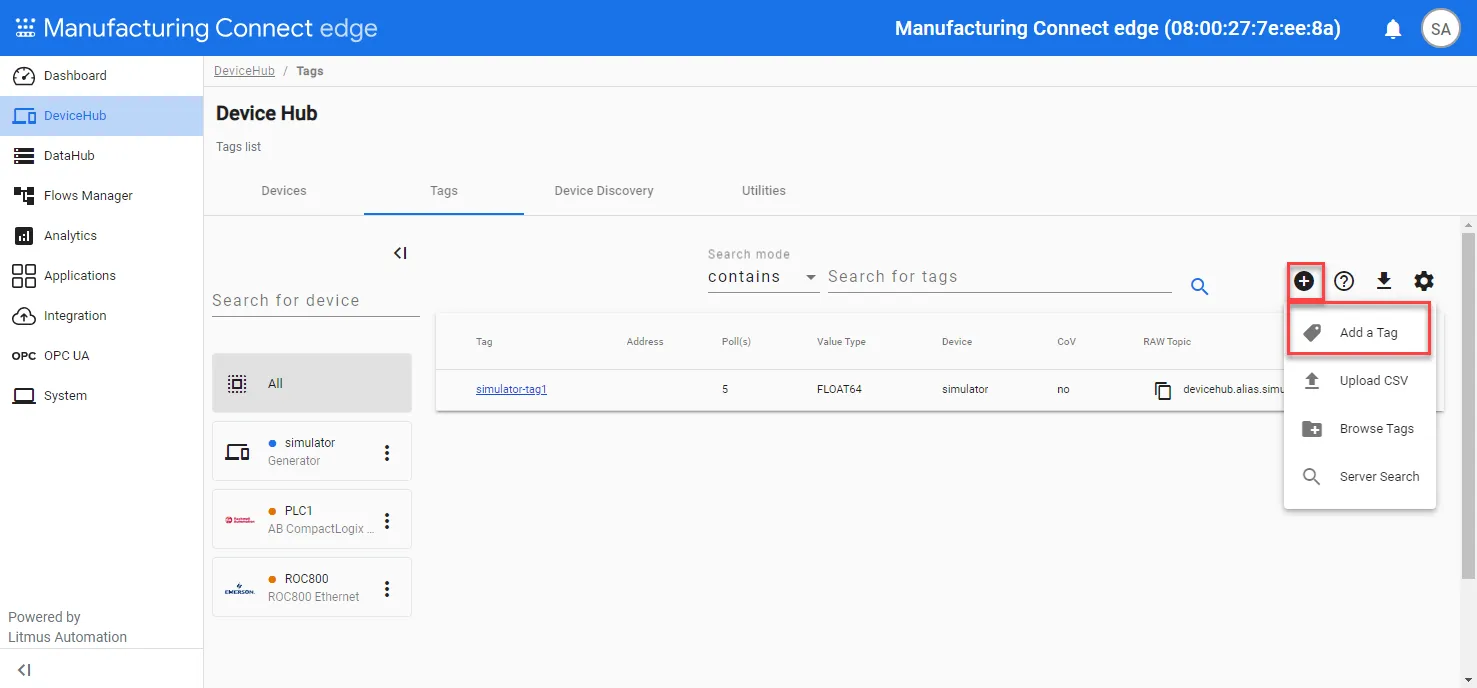
- From the Tags pane, click the Add Tag icon, and then select Add a Tag. The Add Tag dialog box appears.
- Click the Select a Device field, and then select an option from the drop-down list. Only devices that had been added to Manufacturing Connect Edge appear in the drop-down list. The fields displayed in the Add Tag dialog box depend on the device driver type.
- From the Add Tag dialog box, complete the parameters for the tag. Refer to the Industrial Systems Connection Guide for parameters specific to your device driver and review the Tag Parameters section.
- The following optional parameters apply to all device drivers. Configure them as needed.
- Tag Formula: Enter a formula for the tag to process the generated data. See Tag Formula Variables to learn more. Two variables are permitted: value (current tag value) and timestamp (current tag UNIX time in milliseconds). The following math functions are available:
- sin
- cos
- tan
- sqrt
- power: power(x) performs the operation 10^x.
- log: log(x) is the natural logarithm (the logarithm is in base e.)
- exp: exp(x) performs the operation e^x.
- For additional functions on tag values such as rounding and data conversions, you can use Analytics or the Flows Manager.
- Only Publish on Change of Value: Select the checkbox to customize NATS messages to be published only when the value parameter changes from a previous value to a new one. Change of Value only applies to boolean, numeric (such as int or float), and simple string data types. It does not apply to complex types, such as JSON or array. Poll-once topics will not be affected by Change of Value settings. These topics will still only see a single message.
- Meta Data: Metadata summarizes basic information about data. This feature allows you to define key-value pair data for the device output payload later on. It can then be used to find, use, and reuse particular instances of data. See Organize Device and Tag Data by Using Metadata to learn more.
- When done configuring the tag, click Add Tag.
Important: The current topic name generation rule uses a byte-specific replacement protocol to create topic names. In this system:
- If you use special characters in meta data key names, the special characters are replaced with underscore characters in the payload. This can cause two key names to be combined into one. For example, configuring the key names a**b and a&&b will cause only one key name to be created (a__b).
- ASCII Special Characters: Symbols and spaces are replaced with a single underscore (“_”) since they are represented in 1 byte.
- Accented and Extended Unicode Characters: Characters with accents (e.g., “ó”) are replaced by a double underscore (“__”), reflecting their 2-byte representation. The 3-byte and 4-byte Unicode characters are replaced with three (“___”) and four (“____”) underscores, respectively.
The tag appears in the Tags pane.